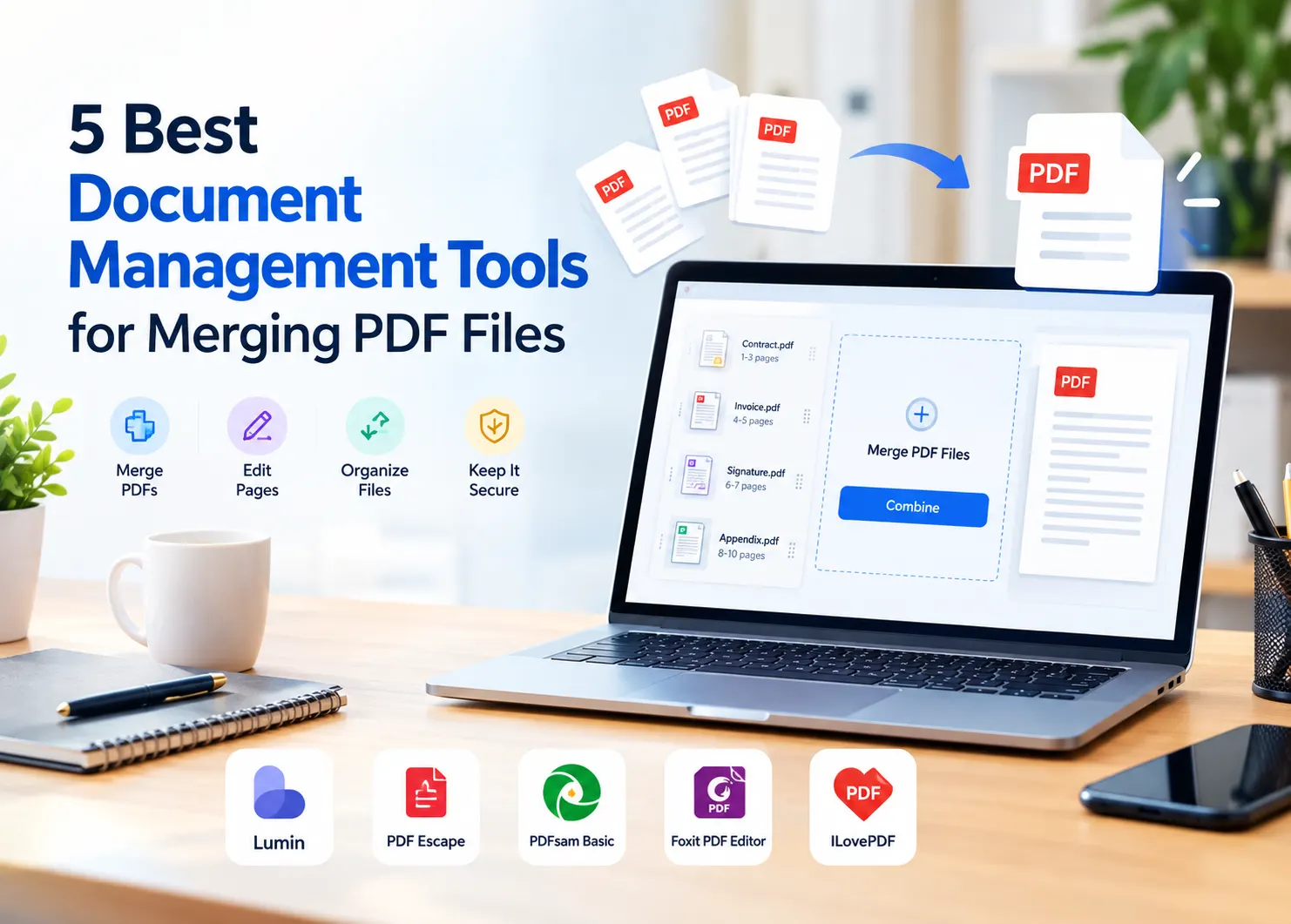
Merging PDF files sounds harmless until the actual files land on your desk. One is a contract. One is a scanned signature page. One is an invoice that was downloaded from an email thread no one wants to reopen. Another file has a name like “new_version_2_final,” which is never a reassuring sign.
Then the simple request appears: “Can you send it all as one PDF?”
That one sentence usually means opening every attachment, checking whether the pages are in the right order, deleting a duplicate scan, dragging files around, renaming the finished version, and hoping nobody replies with “wrong attachment.” PDF merging is a small task, but it fits right into the way people work with documents. So a clean combined file can save a client, teacher, manager, or teammate from guessing what belongs where.
Why merging PDFs is still a regular work problem?
PDFs are useful because they hold their shape. A form looks like a form, too. A contract keeps its layout. A report does not fall apart when it moves from one device to another. That reliability is precisely why people keep using them for applications, invoices, signed paperwork, client packets, study materials, and internal records.
The trouble is that real documents rarely arrive neatly. A lawyer may need the main agreement, an appendix, and a signed page in one file. A freelancer may need to send a proposal, pricing page, and terms together. A student may want lecture notes and readings in one pack before exams. Someone in finance may need to keep receipts behind the right invoice before archiving anything.
Merging does not make the work glamorous. It just makes the document easier to follow. One complete file is easier to send, easier to store, and much easier to review than five loose attachments sitting in the wrong order.
What makes a PDF merger worth using?
The basic job is obvious: take several files and turn them into one. A useful tool does more than that. It lets you move pages around before the merge, catch a duplicate, rotate a scan that came in sideways, and rename the finished file without starting over.
That matters because the mistake is often not the merge itself. The mistake is the page order. Or the old version. Or the blank scan. Or the signature page that should have been at the end but landed somewhere in the middle. If the tool makes those checks difficult, the user still has to do extra work outside the platform.
There is also the privacy side. Plenty of PDFs are harmless, but many are not. Contracts, employee records, client details, invoices, tax papers, ID scans, and medical forms should not be uploaded anywhere without a quick check of how the tool handles files. Speed is helpful. So is knowing where a private document goes.
What to look for | Why it matters when files are messy |
Page preview | You can spot the wrong page before sending |
Drag-and-drop ordering | Files can be placed in the correct sequence |
Editing options | Small fixes do not require another app |
Sharing tools | The finished PDF can go straight to the right person |
Signing features | Approval can happen after the merge |
Privacy controls | Sensitive files are handled with more care |
1. Lumin
Lumin. Lumin is the best choice here when merging is only part of the job. Some tools are just fine for a quick file join and nothing else. Lumin is better when the finished PDF still needs comments, edits, approval, or a signature. That is a common situation. A team combines pages for a client packet and notices a paragraph needs a correction. A student merges several readings and wants to mark them up.
Then a contractor sends one document to a client and then needs the signed version back without starting a new chain of downloads and uploads. Users can merge PDF files through Lumin and keep working on the same document afterward. That is the part that makes it less a one-off utility and more a document workspace. It is particularly useful for remote teams, small businesses, students, and freelancers who work with shared PDFs a lot.
Lumin may be more than necessary for someone who has to join two public files once in a while. And for people who merge, edit, share, review, and sign documents regularly, it also has the advantage of saving a lot of irritating file handling.
2. PDF Escape
PDF Escape is useful when a PDF needs a few fixes before it is sent out. Maybe a form is partly blank. Maybe a note has to be added. Maybe one page needs to be marked, protected, or adjusted before it becomes part of the final file.
It is not the kind of tool that feels built for large document teams with long approval chains. That is not really its job. Its strength is smaller, everyday cleanup. If someone has a document that is nearly ready but still needs a field filled in or a page organized, PDF Escape can handle that without making the user switch between several tools.
3. PDFsam Basic
PDFsam Basic has a different appeal because it is a desktop tool. Some people prefer that. They do not want every file going through a browser, especially when the documents are private, large, or easier to manage locally. For businesses handling private files regularly, secure document management should also be part of the wider approach to protecting sensitive information.
The tool focuses on structure: merging, splitting, rotating, extracting, and reordering pages. It is not trying to be a full cloud workspace. For many users, that is the main goal.
Picture someone dealing with scanned paperwork. The scan includes ten pages, but only six belong in the final file. Two pages are sideways. One page belongs in another folder entirely. PDFsam Basic lets the user split the scan, remove what does not belong, rotate the useful pages, and then combine everything again.
It is practical rather than flashy. People who want comments, signatures, and team review may find it too limited. People who mainly want local page control may like it exactly because it stays focused.
4. Foxit PDF Editor
Foxit PDF Editor is better suited for heavier PDF work. It makes sense in an office where PDFs come up every day and need more than just merging. Reports, contracts, manuals, scanned records, and internal forms need to be edited, OCR'd, converted, protected, and reviewed before anyone can call them finished. This is where Foxit is more like an editor than just a quick merge tool. It helps a team to merge documents, edit text, work with scanned pages, set security settings, and prepare a file for business use. It may be too much for a person who only wants to join two PDFs once a year.
For companies that regard PDFs as part of normal operations, the wider toolset can be useful. Control is the main advantage. The user has more space to handle complex files without bouncing between small single-purpose tools..
5. ILovePDF
ILovePDF is the kind of tool people remember because it is quick. The site offers common PDF tasks: merge, split, compress, convert, and sign. For everyday admin work, that is often enough.
Someone receives three attachments and needs one PDF. Someone else has a file that is too large to email. Another person needs to convert a document before adding it to a packet. ILovePDF handles those ordinary jobs with very little setup.
How to avoid making one messy PDF out of several messy files
- Open each file before merging it.
- Delete old drafts, blank scans, and duplicate pages.
- Rename files so the order is obvious.
- Put signature pages, appendices, and receipts where they belong.
- Check the merged PDF once before sending it.
- Give the final file a name that another person can understand.
The right PDF merger depends on what happens after the files are joined. I love PDFs or PDFs Basic may be sufficient if the task is quick and simple. PDF Escape is useful if the file needs light edits or form work. If the office has a volume of PDFs, Foxit PDF Editor gives more control. Lumin is the better fit if a merged file is still active. It works well when people need to combine pages, review the result, add comments, make edits, get signatures, and share the document without scattering versions across downloads and email threads. These kinds of streamlined workflows can also contribute to better business productivity by reducing unnecessary file handling and repetitive administrative tasks.
A PDF merger should not leave someone with one large file that is still hard to use. It should make the next step easier. Occasionally that means a quick merge. Occasionally it means local page control. And occasionally it means more workspace for the document to move on after the merge is completed.
Read More Blogs On: