Chrome has become much more than a browser. For many people, it is where they manage tasks, research topics, communicate with clients, write content, track projects, and complete most of their daily online work. With so much happening inside a browser, even small distractions or repetitive actions can add up quickly.
This is where the right and best productivity Chrome extensions can help. From managing overflowing tabs and capturing tasks to improving writing and documenting workflows, extensions can remove small points of friction from your everyday work.
However, installing more extensions does not automatically make you more productive. In fact, too many extensions can create clutter, duplicate the functions of tools you already use, and introduce unnecessary permissions. The better approach is to choose a tool based on a specific problem you want to solve.
In this guide, we have selected 7 of the best productivity extensions for Chrome in 2026 and looked beyond their basic features. For each one, we'll consider what problem it solves, where it fits into a real workflow, its limitations, and the type of user who can benefit most from it.
Whether you're a student, freelancer, marketer, writer, remote professional, or simply looking for a more efficient way to work online, this list will help you choose the best Chrome extensions for productivity without turning your browser into another source of distraction.
How We Chose the Best Productivity Chrome Extensions
Instead of ranking Chrome extensions based only on ratings, downloads, or the number of features they offer, we looked at what each tool actually helps you accomplish inside Chrome. We tested the list against common productivity problems such as managing tasks, controlling tabs, writing faster, tracking time, documenting processes, and reducing browser distractions.
Here’s what we considered:
1. What Problem Does the Extension Solve?
Every extension on our list has a clear productivity use case. For example, Todoist is useful for capturing and managing tasks without leaving the browser, while OneTab helps turn a browser overloaded with open tabs into a manageable list. Clockify focuses on tracking how much time you actually spend working, and Text Blaze reduces repetitive typing with reusable text snippets.
We prioritized extensions that solve a specific problem rather than tools that simply add another feature to Chrome.
2. Does It Save Time in a Real Workflow?
We looked at whether an extension can remove steps from tasks people perform regularly.
For example:
- Grammarly can help catch writing mistakes while composing emails, documents, and online content.
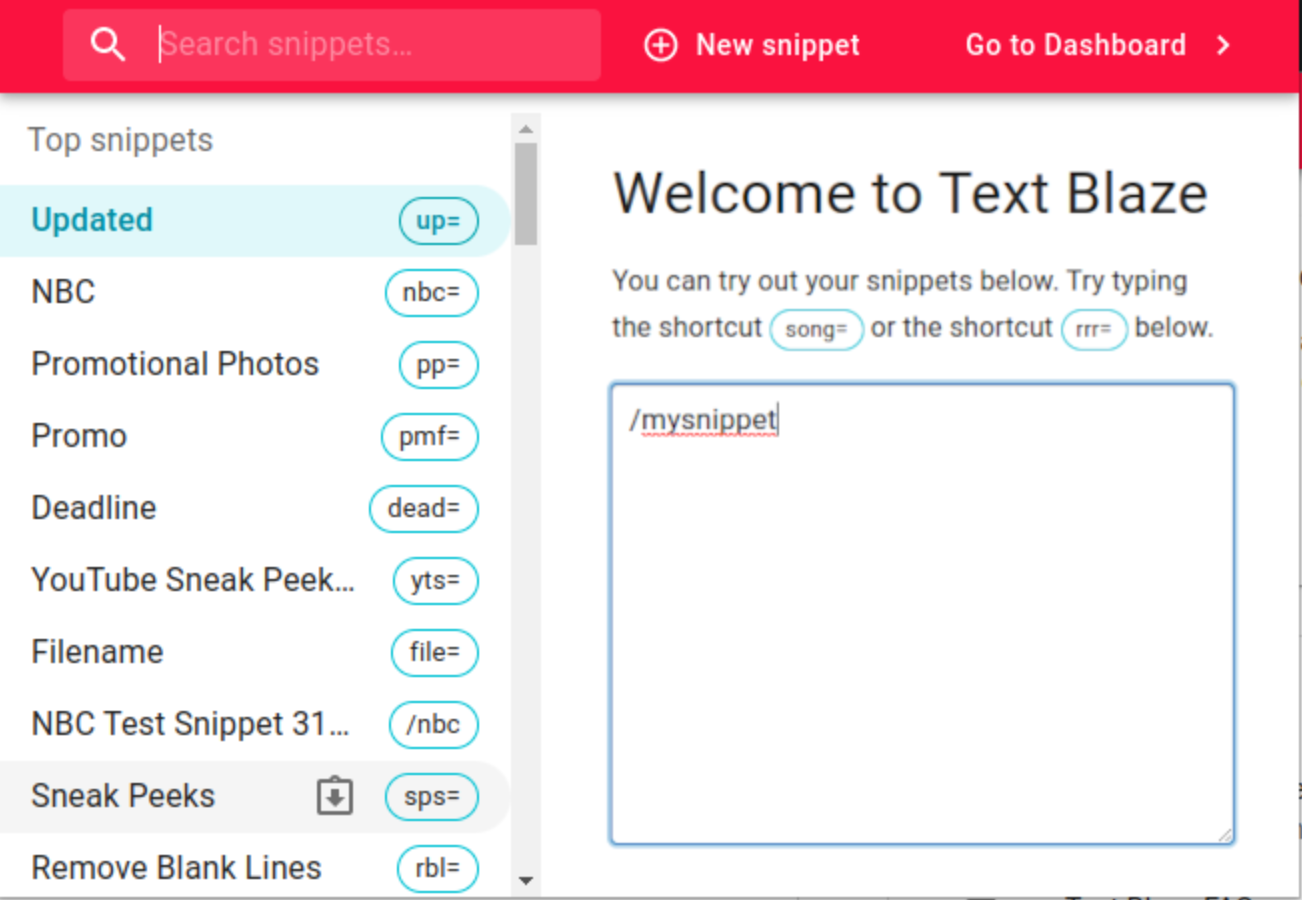
- Text Blaze can insert frequently used phrases without repeatedly typing them.
- Loom can make it faster to explain a problem or process through a screen recording instead of writing a long explanation.
- Scribe can turn a process into step-by-step documentation, reducing the effort required to create instructions manually.
The goal was to identify extensions that can save actual working time, not just offer convenient features.
3. How Well Does It Fit Into Chrome?
Because these are Chrome extensions, we considered how naturally each tool works within the browser.
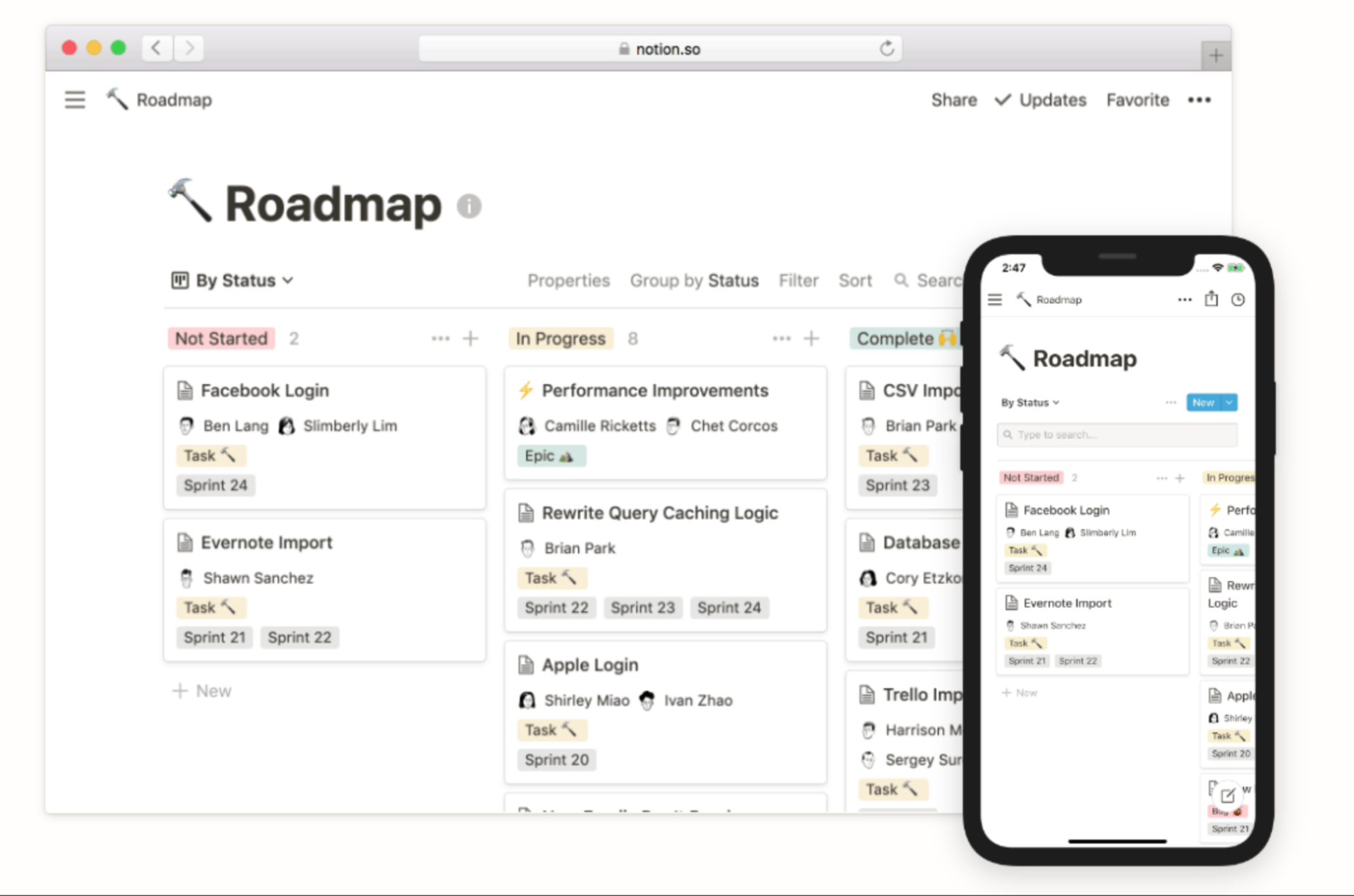
An extension should ideally be accessible when you need it without forcing you to constantly switch between applications. Notion Web Clipper, for example, lets users save useful web pages or information to their Notion workspace while browsing. Similarly, Todoist can be used to capture tasks without completely interrupting the current workflow.
4. Is the Main Feature Actually Useful?
We focused on the core function of each extension rather than giving extra credit simply because it has a large feature list.
For example, OneTab doesn't need dozens of productivity features to be useful. Its primary job is reducing tab clutter, and that's exactly what we evaluated it on.
Likewise, Momentum is included for a different reason: it can provide a cleaner, more focused browser start page rather than trying to become a complete task-management system.
5. How Much Setup Does It Require?
We considered how quickly someone can install an extension and start getting value from it. A productivity extension shouldn't create a complicated setup process that takes hours to maintain. Tools such as OneTab and Momentum can be useful almost immediately, while tools such as Scribe or Text Blaze may require some initial setup to get the most out of them.
That difference matters when deciding which extension is right for a particular workflow.
6. Free Features vs. Paid Features
We also looked at what users can realistically do without paying and what they gain by upgrading.
This is particularly important for productivity extensions because a tool may look useful at first but restrict its most valuable features to a paid plan. Rather than simply labeling an extension as "free" or "paid," we considered whether its available features provide meaningful value at each level.
7. Privacy, Permissions, and Browser Access
Productivity extensions can require access to webpages, browsing data, or other browser functionality depending on what they do.
We therefore considered the permissions an extension requires and whether those permissions make sense for its functionality. This is especially relevant for tools that interact with webpage content, block advertisements, record browser activity, or modify text.
For example, uBlock Origin Lite has a fundamentally different purpose from a task-management extension: its productivity benefit comes from reducing unwanted web content and distractions rather than managing work directly.
8. Does It Serve a Different Productivity Need?
We deliberately didn't choose 10 extensions that all perform the same job. This means the "best" extension depends heavily on where your productivity bottleneck is. Someone who constantly loses track of tabs may get more value from OneTab than Todoist, while someone who repeatedly writes the same emails or messages may benefit far more from Text Blaze.
9. Is It Still Relevant for Modern Chrome Workflows?
Finally, we considered whether each extension makes sense for the way people work in 2026.
Browser-based work now includes AI-assisted writing, remote communication, online project management, documentation, time tracking, and increasingly complex web workflows. We therefore favored extensions that have a practical role in these current workflows rather than tools that are popular simply because they have been around for years.
One important point: you don't need to install all 7. The best extension for Chrome is ultimately the one that solves a problem you regularly experience.
With that in mind, let's look at the tools that made our list.
Quick Comparison: 7 Best Productivity Extensions for Chrome in 2026
Now, let's look at each best productivity Chrome extension in detail and, more importantly, what makes it useful beyond its basic feature list.
Extension | Best For | Main Productivity Benefit | Potential Limitation | Best Suited For |
| Recall | Saving, summarizing, and organizing online content | Saves and summarizes online information for easier retrieval | Large collections can still require organization | Researchers, students, professionals |
Todoist | Task management | Turns browser activities into actionable tasks | Can become complicated if over-organized | Professionals, students, freelancers |
OneTab | Tab management | Reduces tab clutter | Saved tabs still need organization | Researchers, writers, multitaskers |
uBlock Origin Lite | Distraction-free browsing | Reduces unwanted page elements | Filtering capabilities vary | Everyday Chrome users |
Clockify | Time tracking | Helps identify where work time goes | Requires consistent tracking | Freelancers, teams |
Momentum | Focus | Creates a more focused new-tab experience | Doesn't replace a task manager | Students, professionals |
Notion Web Clipper | Research | Saves webpages for later organization | Saved information can pile up | Writers, researchers |
Loom | Communication | Makes visual explanations easier | Not every message needs a video | Remote teams |
Text Blaze | Text automation | Speeds up repetitive typing | Templates require maintenance | Sales, support, recruiters |
Scribe | Documentation | Creates step-by-step workflow guides | Guides may need human review | Business and operations teams |
1. Recall: Best for Saving, Summarizing, and Organizing Online Content
The internet is full of useful information, but finding something you saw weeks or months ago can be surprisingly difficult. You may save an article, watch a video, read a research paper, or come across an important webpage and think you'll remember where it was. Eventually, those resources become scattered across browser bookmarks, tabs, notes, and different apps.
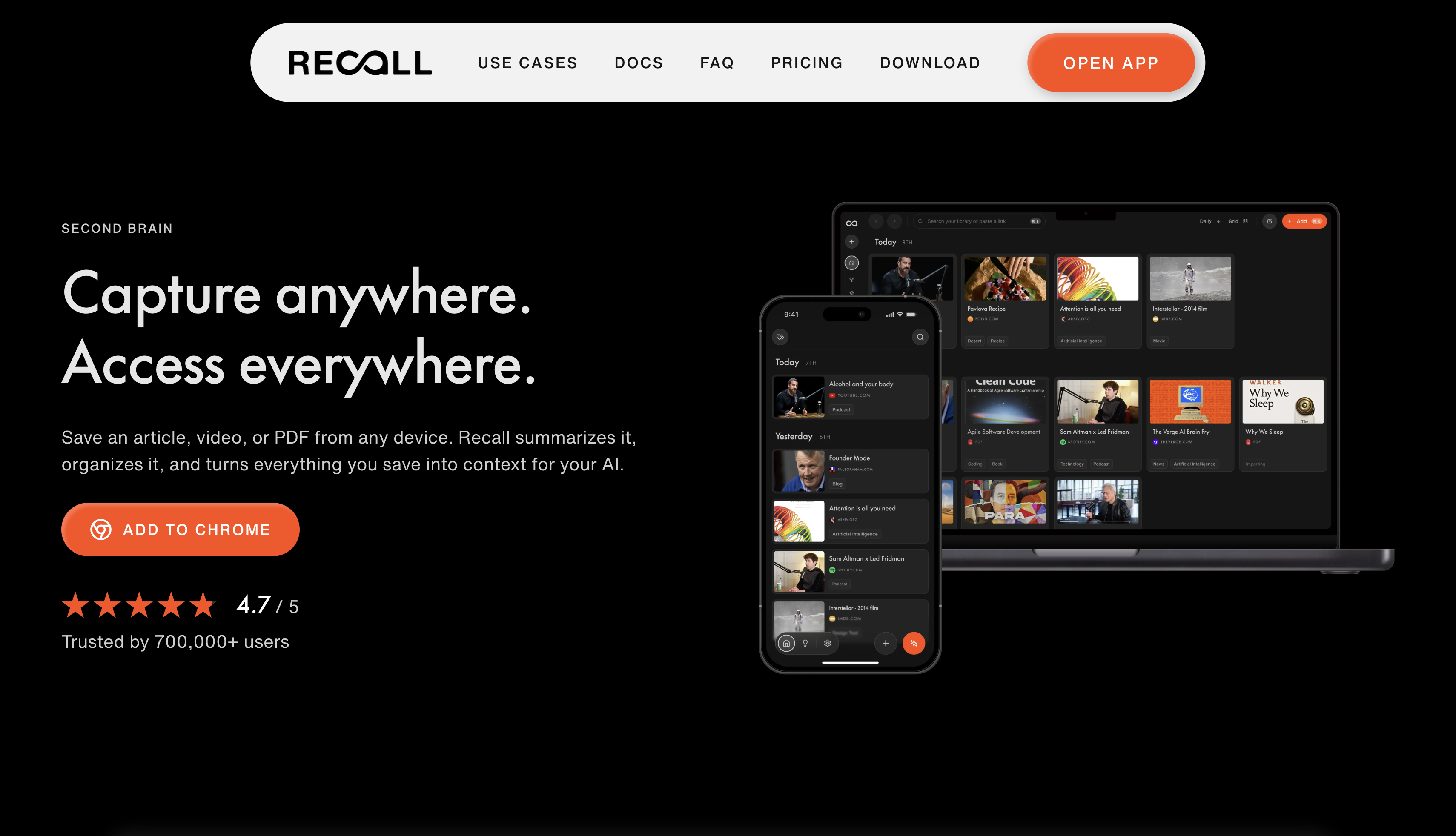
Recall approaches this problem differently by combining content saving, AI-powered summarization, and knowledge organization in one workflow. Its Chrome extension can help users capture online content while browsing, summarize it, and organize the information so it can be easier to find and revisit later.
For people searching for the Best Productivity Chrome Extension for managing information overload, Recall is particularly interesting because it focuses on what happens after you discover useful content.
What Problem Does Recall Solve?
The biggest problem Recall addresses is information overload.
Think about a typical research session. You might open a news article, watch a YouTube video, read a blog post, check a PDF, and save several webpages for later. Even if every piece of content is valuable, manually reading, summarizing, tagging, and organizing everything takes time.
The alternative is often even worse: saving everything and never looking at it again.
Recall helps turn that scattered information into a more organized personal knowledge base.
Instead of simply saving:
“Interesting article about AI.”
You can have the important information summarized and stored in a structured collection that you can revisit later.
This distinction matters because productivity isn't only about consuming information faster. It's also about making useful information easier to retrieve when you actually need it.
For researchers, writers, students, marketers, and professionals who spend significant amounts of time online, that can make a noticeable difference.
How the Recall Chrome Extension Works
Recall works directly within the browser, allowing you to capture online content without completely interrupting your research workflow.
Depending on the type of content you're viewing, Recall can process webpages and other online resources and generate AI-powered summaries. Those summaries can then become part of your personal knowledge base.
A typical workflow looks something like this:
Discover content → Save it → Summarize it → Organize it → Retrieve it later
Instead of manually copying important paragraphs into a document or writing your own notes from scratch, Recall can handle much of the initial summarization and organization.
This is especially useful when you're researching a topic and encounter more information than you can realistically process immediately.
Key Features
Some of the most useful productivity features associated with Recall include:
- AI-powered summaries: Quickly understand the main points of online content without reading every word immediately.
- Content saving: Store useful webpages and other resources for future reference.
- Knowledge organization: Keep saved information in a centralized personal knowledge base.
- Automatic connections: Related pieces of information can be connected, helping you discover relationships between topics.
- Search and retrieval: Find previously saved information instead of searching through dozens of browser bookmarks.
- Multiple content types: Recall can work with different forms of online information, making it useful for broader research workflows.
- Browser-based capture: Save useful information while continuing your existing Chrome workflow.
What Most Productivity Lists Don't Tell You
Many productivity articles treat information management as simply a matter of saving more content.
But saving isn't the same as remembering.
You can have hundreds of bookmarks and still struggle to find the one article you need. You can also save dozens of videos without remembering why you saved them in the first place.
Recall's more interesting productivity benefit is that it helps reduce the gap between discovering information and being able to use it later.
A useful way to think about the workflow is:
Discover → Understand → Connect → Retrieve
For example:
- “Interesting research paper” → save and summarize it
- “Useful competitor article” → save it with its key information
- “Important tutorial” → store it for future reference
- “Concept I need to understand” → connect it with related information
This approach can prevent your knowledge base from becoming another collection of forgotten links.
Extension vs Traditional Bookmarks: Is Recall Actually Worth Installing?
If Chrome already lets you bookmark webpages, you might reasonably ask why you need another tool.
The difference is that a traditional bookmark primarily remembers where something is.
Recall is designed to help you remember what the information contains.
Consider two workflows.
With traditional bookmarks:
Find article → bookmark it → continue browsing → forget why you saved it → search through bookmarks later.
With Recall:
Find article → save it → review its summary → organize it with related information → retrieve it when needed.
That difference becomes increasingly important as the amount of information you consume grows.
Bookmarks are excellent for simple link storage. Recall becomes more useful when you're trying to build a searchable collection of knowledge rather than simply maintain a list of websites.
Real-World Workflow
Consider a content writer researching an article about artificial intelligence.
- The writer discovers several industry reports.
- Instead of opening every report repeatedly, they save the relevant content to Recall.
- Recall generates summaries that make the main ideas easier to review.
- The writer stores the information in their knowledge base.
- Related information can be connected with previously saved resources.
- When the article is ready to be written, the writer can return to the collected research instead of starting the search process again.
The result isn't simply fewer browser tabs.
The writer has created a reusable research resource.
The same workflow can be useful for students researching assignments, marketers monitoring competitors, professionals learning new subjects, or anyone who regularly consumes more online information than they can remember.
How Is Recall Useful for Everyday Work?
Recall becomes most useful when your browser is effectively your research environment.
Instead of treating every webpage as something you'll either read immediately or forget, you can turn useful information into part of a longer-term knowledge system.
Here are some practical situations where Recall can help:
- Research: Save articles, studies, reports, and other sources for future projects.
- Content creation: Collect and summarize research before writing an article, report, or presentation.
- Learning: Save educational resources and revisit summarized information when studying a subject.
- Marketing: Keep competitor research, industry reports, campaign examples, and market information organized.
- Professional development: Build a personal library of tutorials, guides, articles, and industry insights.
- Project work: Store relevant online resources in one place instead of spreading them across bookmarks and documents.
- Reference management: Keep useful information available for future questions and projects.
The key benefit is that Recall gives information a longer useful life.
For example, instead of saving a research article with the vague thought “I'll read this later,” you can save it, understand its key points, and make it part of your existing knowledge collection.
That makes the tool particularly valuable for people who don't just browse the internet for entertainment but use it as a source of knowledge.
How Much Time and Friction Can It Remove?
The amount of time Recall saves depends heavily on how much information you consume and how often you need to research the same topics.
The biggest potential saving comes from reducing repetitive information processing.
Without an AI-powered knowledge tool, you may need to:
Find content → read everything → take notes → summarize → organize → search for it again later.
Recall can reduce some of those manual steps by helping with summarization and organization.
However, it shouldn't be viewed as a replacement for reading important source material. AI-generated summaries can miss context or nuance, particularly when the original content contains technical, legal, academic, or highly specialized information.
The productivity benefit is therefore less about never reading anything and more about quickly understanding what deserves deeper attention.
Recall and AI in 2026
AI is central to Recall's value proposition.
Rather than functioning only as a place to store links, the platform uses AI to help transform large amounts of online content into more manageable information.
This is an important distinction when comparing productivity Chrome extensions in 2026.
Adding another place to save bookmarks doesn't necessarily solve information overload. The more useful approach is to reduce the amount of manual work required to understand and organize what you save.
For example, AI summarization can help you quickly determine whether a long article deserves a full read. Once you decide that it does, the original source remains available for deeper review.
This makes Recall particularly useful for information-heavy workflows where the challenge isn't finding information but processing and retrieving it efficiently.
Privacy & Permissions
Privacy is an important consideration for any browser extension that processes webpages and online content.
Recall's functionality involves handling the information you choose to save and process, so users should understand how their data is handled before installing the extension.
This is particularly important if you're researching confidential business information, proprietary documents, client material, or other sensitive content.
Before using Recall for professional or confidential workflows, review its current privacy policy, Chrome Web Store permissions, and data-handling information.
As with any AI-powered productivity tool, you should also consider whether the content you're processing is appropriate to send through a third-party service.
Free vs Paid
Recall has offered different access levels and paid options as its product has evolved, with availability and feature limits subject to change.
The free experience can be useful for users who want to experiment with AI-powered content summarization and knowledge management before committing to a larger workflow.
Users with heavier research requirements may benefit more from paid capabilities, particularly if they save large amounts of content or want access to more advanced knowledge-management features.
Note: Pricing, limits, and included features can change, so check Recall's current pricing information before publishing exact prices in a final article.
Who Should and Shouldn't Use Recall?
Recall is a good fit for:
- Researchers handling large amounts of online information
- Students collecting resources for assignments and projects
- Writers building research libraries
- Marketers monitoring industries and competitors
- Professionals learning new subjects
- People who frequently save articles, videos, and other online resources
You may not need it if:
- You rarely save online information.
- Chrome bookmarks already meet your needs.
- You prefer taking all notes manually.
- You don't regularly revisit research material.
- You primarily browse the web for short, one-off tasks.
Verdict
Recall earns its place among the best Chrome extensions for productivity because it addresses a problem that traditional browser tools don't completely solve: what happens to useful information after you discover it?
Its biggest advantage isn't simply that it can save webpages or generate summaries. The real benefit is bringing saving, understanding, and organizing information into a more connected workflow.
For users who regularly research, learn, write, or consume large amounts of online content, Recall can turn scattered webpages into a reusable knowledge base.
If your browser is constantly filled with articles, videos, reports, and resources you intend to revisit, Recall is worth considering—not as another place to store information, but as a way to make that information easier to understand and retrieve when you actually need it.
2. Todoist: Best for Turning Browser Activity Into Actionable Tasks
When you're working in Chrome, tasks can appear everywhere. You may find an article worth reading, receive a client request, discover a useful resource, or remember a follow-up while researching. The problem is that these tasks can easily get buried among open tabs, emails, bookmarks, and notes.
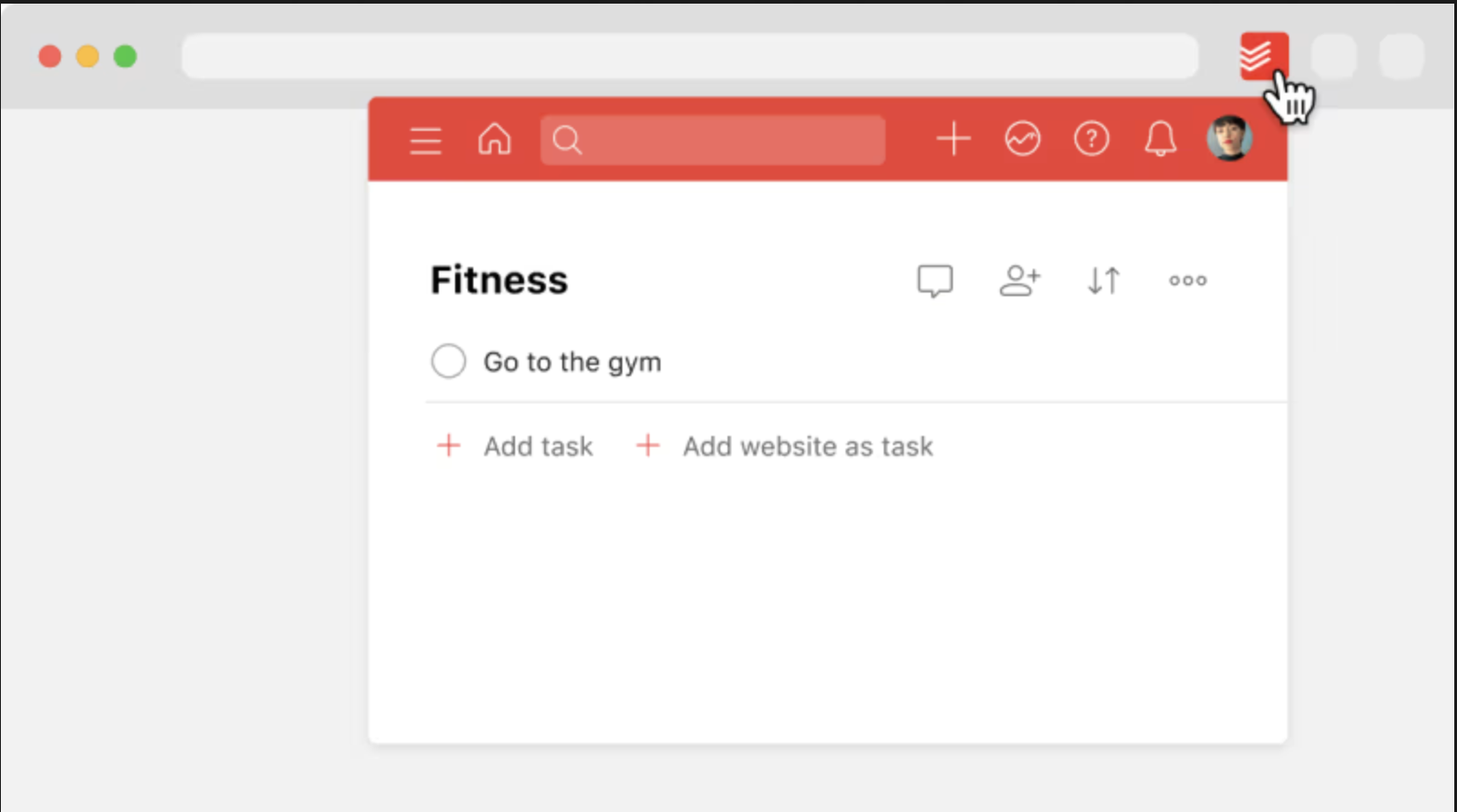
Todoist addresses this problem by bringing task capture directly into the browser. Its current Chrome extension lets users add tasks while browsing, save webpages as tasks, select text from a webpage and turn it into a task, and view or complete tasks without leaving the current page.
What Problem Does Todoist Solve?
The biggest problem Todoist solves is task fragmentation.
For example, imagine you're researching a project and come across three useful articles. You don't have time to read them immediately, so you leave all three tabs open. A few hours later, you have 25 tabs open and can't remember which pages actually mattered.
Todoist lets you turn those pages into specific tasks instead.
Instead of:
“I should remember this article.”
You can create:
“Read competitor research articles on Friday.”
That small change turns passive information into an actionable item.
For users looking for chrome extensions for productivity, this is one of Todoist's strongest advantages: it connects browsing activity with task management instead of keeping the two workflows separate.
How the Todoist Chrome Extension Works
Once installed, the Todoist extension can be accessed from Chrome's extensions area. From there, you can view your task list and add new tasks without opening a separate Todoist tab.
You can also:
- Add the current webpage as a task.
- Right-click a webpage and send it to Todoist.
- Highlight specific text and turn that text into a task.
- Assign a project, label, date, or time.
- Review and complete tasks directly from the browser.
This makes it particularly useful when your work involves frequent research or online communication.
Key Features
Some of the most useful features for everyday productivity include:
- Quick Add: Capture a task without leaving your current workflow.
- Website-to-task capture: Save an article or webpage as a task.
- Text-to-task capture: Select specific information from a page and save it as a linked task.
- Projects and labels: Organize tasks according to different areas of work.
- Priorities and deadlines: Identify what needs attention first.
- List, board, and calendar planning: View tasks according to the way you prefer to organize work.
- Natural-language task entry: Todoist can interpret inputs such as dates and times when creating tasks.
What Most Productivity Lists Don't Tell You
Many articles describe Todoist as a task manager and stop there. The more interesting productivity benefit is deciding what deserves to become a task in the first place. Not everything you see online should be sent to Todoist.
A useful rule is:
Information → save it somewhere appropriate.
Action → turn it into a task.
For example:
- “Interesting article” → bookmark or knowledge base
- “Read this article before Monday” → Todoist task
- “Remember this website” → bookmark
- “Compare these three competitors” → Todoist task
This prevents your task list from becoming another storage system filled with things you may never actually do.
Extension vs Web App: Is It Actually Worth Installing?
If you already use Todoist in a browser tab, you might wonder why you need the extension at all.
The answer comes down to friction.
The web app is better when you're planning your projects, reviewing your workload, or reorganizing a large task list. The extension is more useful when you're in the middle of browsing and suddenly need to capture something.
For example:
Without extension:
Find webpage → open Todoist → create task → copy URL → return to research.
With extension:
Find webpage → add to Todoist → continue working.
That difference may seem insignificant once. But if you capture tasks several times a day, eliminating those repeated context switches can make the extension worthwhile.
Real-World Workflow
Consider a freelance content writer researching a client's industry.
- The writer finds a useful competitor article.
- Instead of leaving the tab open, they add it to Todoist.
- They assign it to the relevant client project.
- They add a deadline for the research session.
- They close the tab and continue with their current work.
- When the scheduled research task appears, they open the saved article directly from Todoist.
The result isn't simply fewer browser tabs. The writer has separated current work from future work.
That's where Todoist becomes more than another to-do list.
How Is Todoist Useful for Everyday Work?
Todoist becomes most useful when you regularly discover things in Chrome that you need to act on later. Instead of keeping those items in open tabs, bookmarks, sticky notes, or your memory, you can turn them into clearly defined tasks.
Here are some practical situations where the extension can help:
- Research: Save articles, reports, competitor pages, or references as tasks for a later research session.
- Client work: Turn a client's request or a webpage you need to review into a task and attach it to the appropriate project.
- Content creation: Save research pages as tasks such as “Review this study before writing the article.”
- Job searching: Save job listings as tasks so you can return to them when you're ready to apply.
- Student work: Turn useful sources or assignment requirements found online into specific follow-up tasks.
- Marketing: Save competitor campaigns, landing pages, or social media examples that need to be analyzed later.
- Follow-ups: When you come across something that requires action but isn't urgent, capture it immediately instead of relying on memory.
The key benefit is that Todoist gives those browser discoveries a next step.
For example, instead of leaving a tab open because you might need it later, you can create:
“Review this competitor's landing page on Thursday.”
Now the webpage has a purpose, a deadline, and a place in your workflow.
This makes Todoist particularly useful for people whose work involves research, online communication, content creation, project management, or frequent follow-ups. The extension isn't necessarily about making you work faster every minute. Its bigger advantage is helping you avoid losing useful information and making sure important actions don't disappear into a crowded browser.
How Much Time and Friction Can It Remove?
It's difficult to give a universal number because the benefit depends on how frequently you capture tasks.
However, the main saving comes from reducing context switching and manual copying.
If you regularly move information from webpages into a task manager, the extension removes several small steps from that process. More importantly, it reduces the chance that you'll think “I'll remember this later” and then forget about it.
So the productivity gain isn't necessarily measured in hours saved every week. Sometimes it's the reduction in mental friction that makes the difference.
Todoist and AI in 2026
Todoist has also moved beyond traditional task management with Todoist Assist, its suite of AI-powered features.
In 2026, Todoist Assist can help with tasks such as creating actionable tasks, breaking complex tasks into subtasks, generating filters using natural language, and converting forwarded emails into organized tasks. Its Task Assist feature can also suggest tasks, improve task wording, and break larger tasks into smaller steps.
This is an important distinction when comparing today's best productivity Chrome extensions: AI is most useful when it reduces organizational work rather than simply adding an AI chatbot to an existing tool.
Todoist's AI features are therefore relevant for users who already have a substantial task-management workflow. Someone with a five-item daily to-do list probably doesn't need AI to organize it.
Privacy & Permissions
Privacy is worth checking before installing any browser extension, particularly a tool that interacts with webpages.
The current Todoist Chrome Web Store listing states that the extension handles personally identifiable information and website content. It also states that the developer does not sell the data to third parties outside approved use cases and does not use or transfer it for purposes unrelated to the extension's core functionality.
For users handling confidential client information or sensitive business research, it's still worth reviewing Todoist's current privacy documentation and Chrome's permission information before installation.
Free vs Paid
Todoist currently offers a free Beginner plan, while its paid Pro and Business plans add more advanced capabilities. The current pricing page lists features such as additional projects, calendar planning, task duration, custom reminders, reporting, and Task Assist among the paid-plan benefits.
For an individual who mainly wants to capture tasks and manage a few projects, the free plan may be enough. Heavy users who need more projects, advanced planning, reporting, or AI-powered task assistance have a stronger reason to consider Pro.
Note: Pricing and plan limits can change, so check the current pricing page before publishing exact prices in a final article.
Who Should and Shouldn't Use Todoist?
Todoist is a good fit for:
- Freelancers managing multiple clients
- Students tracking assignments and research
- Writers collecting follow-up tasks
- Marketers managing campaigns
- Remote professionals
- People who frequently turn online information into actions
You may not need it if:
- You have only a few daily tasks.
- Chrome's built-in tools already meet your needs.
- You don't regularly capture tasks while browsing.
- You tend to create tasks but rarely review or complete them.
Verdict
Todoist earns its place among the best Chrome extensions for productivity because it connects two activities that are normally separate: browsing and task management.
Its biggest advantage isn't simply that you can create a to-do list from Chrome. It's that you can capture an action at the exact moment you discover it, without interrupting your current workflow.
For users who regularly turn webpages, research, emails, and online information into follow-up actions, Todoist is one of the more practical productive Chrome extensions to consider in 2026.
3. OneTab: Best for Managing Too Many Open Tabs
Researching a topic, comparing products, working on multiple projects, or simply browsing throughout the day can quickly leave Chrome filled with dozens of open tabs. While keeping everything open may feel productive, a crowded browser can make it harder to find what you actually need and can consume additional system resources.
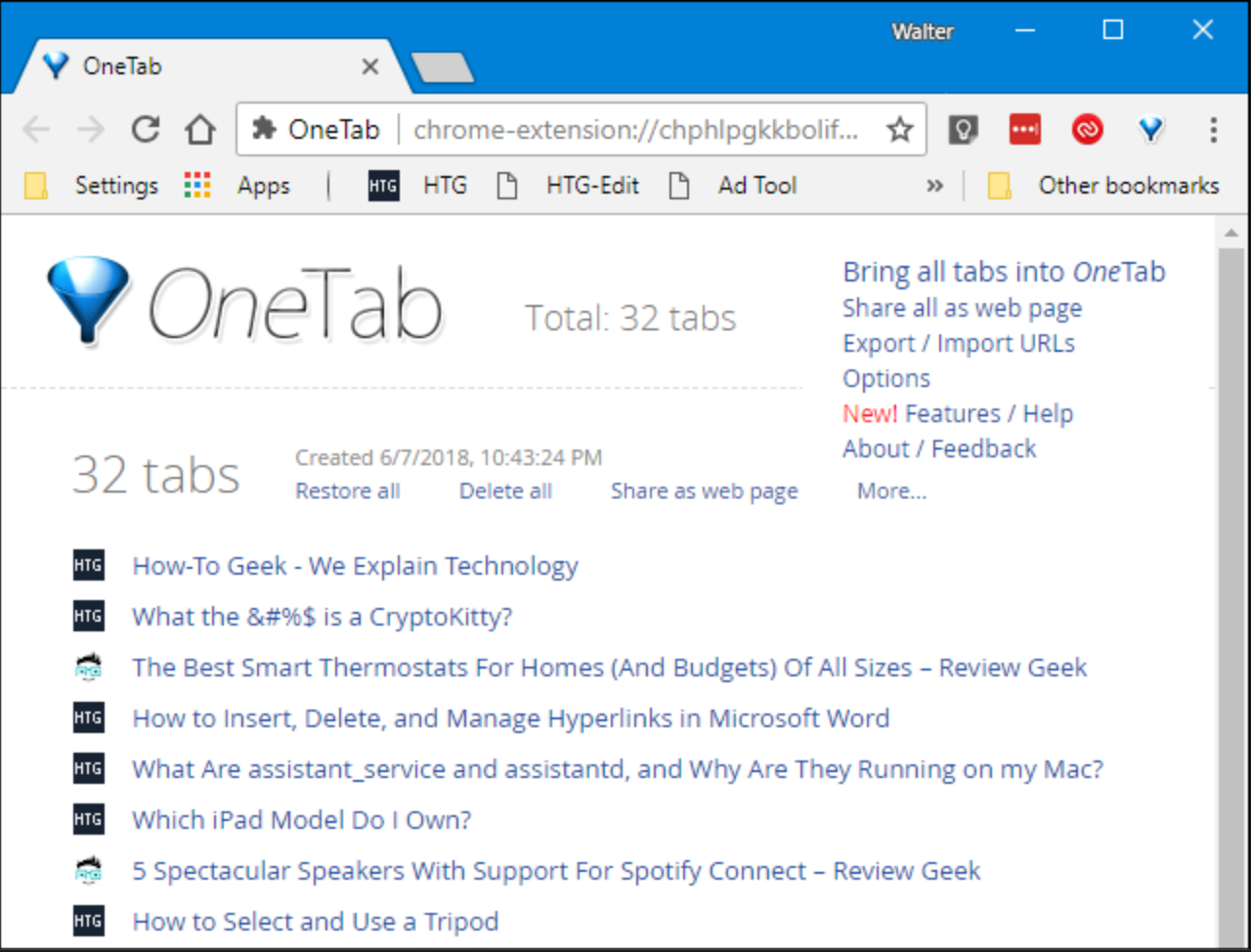
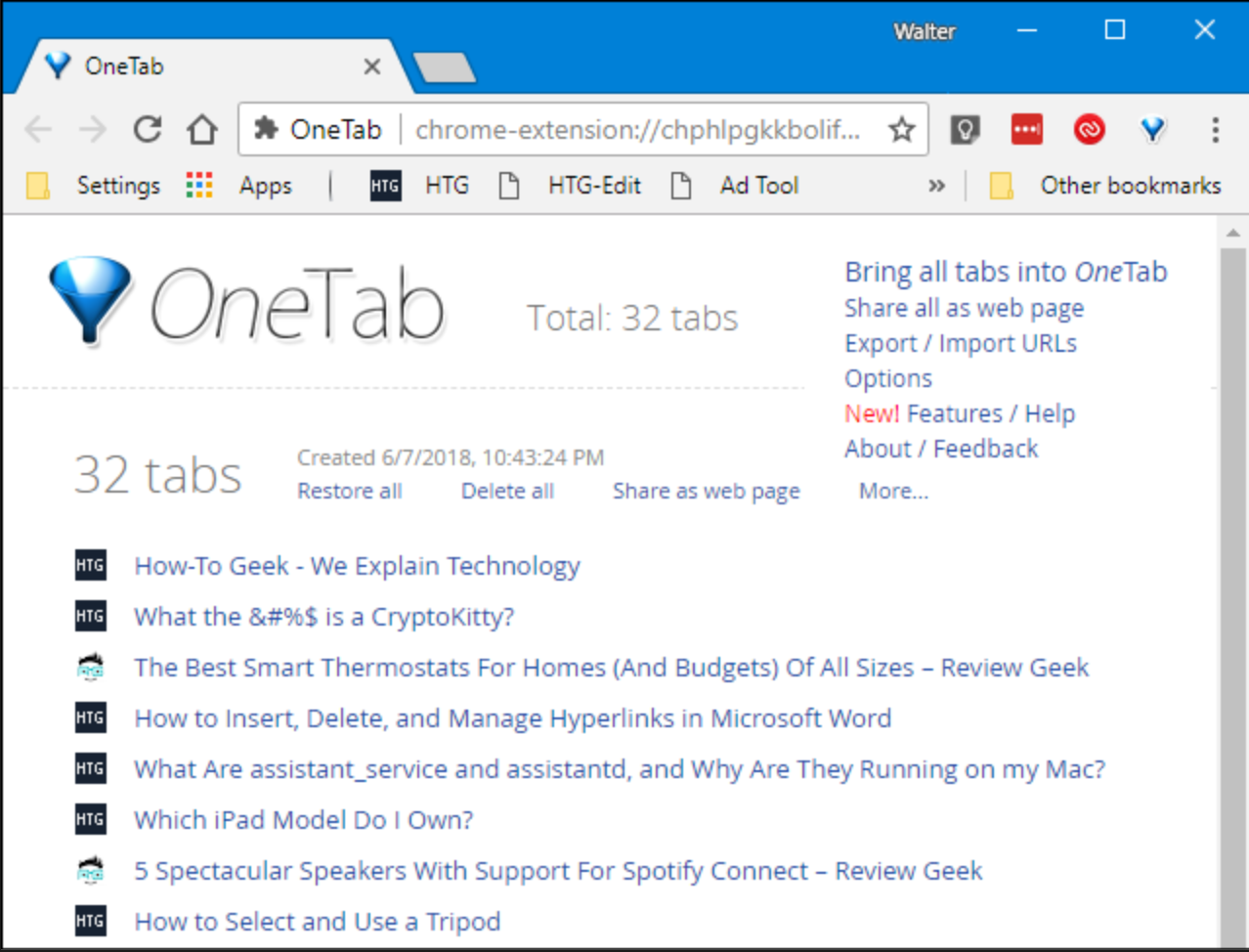
OneTab is designed to solve that problem. Instead of keeping every webpage open, the extension converts your active tabs into a single organized list that you can access and restore later. The current Chrome Web Store listing says OneTab can reduce tab clutter and potentially save up to 95% of memory by closing the tabs that have been converted into its list.
For users searching for Chrome extensions for productivity, OneTab is particularly useful when browser clutter itself has become a productivity problem.
What Problem Does OneTab Solve?
OneTab primarily solves tab overload and context switching.
Consider a researcher working on a report. They might have:
- Competitor websites
- Research papers
- Google searches
- Reference articles
- Statistics pages
- Documents
- Email
- Project management tools
Keeping all of these open makes the browser difficult to navigate. Closing them individually isn't ideal either because some of those pages may still be important.
OneTab creates a middle ground: save the session, close the tabs, and return to them when they're actually needed.
How the OneTab Chrome Extension Works
Once OneTab is installed, clicking its browser icon converts your currently open tabs into a list. You can then restore individual pages or bring multiple saved tabs back when you need them.
This makes the extension particularly useful for people who frequently work across multiple research or project sessions.
Instead of maintaining:
30 active tabs → search through them repeatedly
You can have:
30 saved tabs → organized session → restore only what you need
The extension's current Chrome Web Store listing also shows that OneTab continues to be actively maintained, with version 2.18 updated in July 2026.
Key Features
OneTab focuses on a relatively simple productivity problem, but its features make that workflow more useful:
- Convert all open tabs into a list
- Restore tabs individually
- Restore multiple tabs at once
- Save browser sessions for later
- Reduce the number of simultaneously open tabs
- Reduce browser memory usage
- Share a saved tab list as a webpage when you intentionally choose to do so
The simplicity is actually part of its appeal. You don't need to build a complicated productivity system before you can start using it.
What Most Productivity Lists Don't Tell You
Most articles about best productivity Chrome extensions will tell you that OneTab “reduces tab clutter.” That's true, but the bigger productivity benefit is separating active work from future work.
For example, imagine you're researching five different topics at the same time.
Instead of keeping everything open, you can save one group of tabs for:
Client Research
Another for:
SEO Research
And another for:
Articles to Read
Now your active browser contains only the pages relevant to what you're doing right now.
This is important because tab management isn't really about having fewer tabs; it's about having fewer competing sources of attention.
OneTab can therefore work as a lightweight session-management tool rather than simply an emergency button for a messy browser.
Real-World Workflow
Imagine a content writer preparing a long-form article.
At the beginning of the research process, they open 25–30 pages. Some contain statistics, some are competitor articles, and others contain useful references.
Instead of leaving all 30 pages open throughout the day, the writer can:
- Complete the current research session.
- Send the open tabs to OneTab.
- Close the unnecessary browser tabs.
- Continue writing in a clean Chrome window.
- Return to the saved research list when additional references are required.
- Restore only the pages needed for the next stage.
This creates a much cleaner separation between research mode and writing mode.
How Is OneTab Useful for Everyday Work?
OneTab is most useful when you regularly open more webpages than you can realistically work with at the same time. Instead of treating every open tab as something that needs to remain visible, you can use OneTab to separate what you're working on now from what you may need later.
Here are some practical situations where it can help:
- Research: Save a large collection of research pages after finishing a research session instead of leaving them open all day.
- Content creation: Keep competitor articles, statistics, references, and source material together for a specific article.
- Shopping and comparison: Save product pages while comparing options without keeping every product open simultaneously.
- Client projects: Create separate tab groups for different clients and restore the relevant pages when switching projects.
- Studying: Save lecture resources, articles, documentation, and reference pages for a particular subject.
- Travel planning: Keep hotel, flight, destination, map, and activity pages together and restore them when planning continues.
- Development: Save documentation, Stack Overflow pages, GitHub repositories, and troubleshooting references for a project.
- Reading later: Move articles you genuinely want to revisit out of your active workspace instead of keeping them open indefinitely.
The important distinction is that OneTab doesn't require you to delete your browsing session just because you're finished with it for now.
For example, if you're researching an article and have 20 useful sources open, you can save those tabs to OneTab and return to a clean browser for writing. When you need additional references, you can restore the relevant pages instead of trying to remember which tab contained what.
This makes OneTab particularly useful for people who frequently switch between research, writing, client work, studying, or different projects.
The extension is most valuable when your browser has become a workspace in itself. If you regularly find yourself thinking “I need this tab, but not right now,” that's exactly the type of situation OneTab is designed to handle.
How Much Time and Friction Can It Remove?
OneTab's productivity benefit isn't necessarily about saving a specific number of minutes every day. Its bigger value comes from reducing the small amount of friction involved in managing a large number of open tabs.
Without a tab-management system, you may repeatedly:
- Search through tabs
- Reopen accidentally closed pages
- Keep unnecessary pages open “just in case”
- Switch between unrelated browser sessions
- Spend time figuring out where a particular webpage is
OneTab gives those pages a temporary holding area.
The extension also claims that reducing the number of open tabs can lower memory usage and CPU load, which can help when Chrome becomes sluggish under a heavy tab workload.
OneTab and Productivity in 2026
The need for tab management has arguably become more relevant as browser-based work continues to involve more research, online tools, AI services, documents, dashboards, and communication platforms.
However, OneTab isn't trying to compete with every modern productivity tool. Its strength is narrower: take the tabs you're not using right now and get them out of the way without losing them.
That makes it a useful addition to a broader productivity setup rather than a complete task-management solution.
Privacy & Permissions
Privacy is particularly important for a tab-management extension because the tool needs to interact with your open tabs.
According to OneTab's current Chrome Web Store listing, the developer states that tab URLs are not transmitted or disclosed to OneTab or other parties. The stated exception is when a user deliberately chooses the extension's “share as a web page” feature. The developer also states that it does not collect or use user data.
As with any browser extension, users should still review the current permissions and privacy information before installation, particularly if their browser contains sensitive work-related pages.
Who Should Use OneTab?
OneTab can be especially useful for:
- Students researching assignments
- Writers collecting references
- Researchers working across multiple sources
- Developers switching between documentation and projects
- Marketers researching competitors and campaigns
- Freelancers managing several clients
- Anyone who regularly finds themselves with dozens of open tabs
If you normally work with only five or six tabs, you may not notice much benefit. The value becomes much clearer when your browser routinely turns into a long row of difficult-to-manage tabs.
Verdict
OneTab earns its place among the best productivity extensions for Chrome in 2026 because it tackles a simple but surprisingly common problem: too many open tabs competing for your attention.
Its biggest advantage isn't merely closing tabs. It's giving users a way to move unfinished browsing sessions out of their immediate workspace while keeping them available for later.
For researchers, writers, students, and multitaskers, OneTab can be a simple way to turn a cluttered Chrome browser into a more focused working environment.
4. uBlock Origin Lite: Best for Distraction-Free Browsing
Ads, pop-ups, trackers, autoplaying content, and other unwanted page elements can make browsing unnecessarily distracting. When you're trying to research, read an article, or complete work online, these interruptions can pull your attention away from the task at hand.
uBlock Origin Lite is a content-blocking extension designed to make webpages cleaner by filtering unwanted content. For users searching for Chrome extensions for productivity, its value goes beyond blocking ads: a less cluttered browsing environment can make it easier to focus on the information that actually matters.
What Problem Does uBlock Origin Lite Solve?
The main problem it addresses is digital distraction while browsing.
A webpage can contain far more than the information you're looking for. Advertisements, promotional banners, pop-ups, tracking elements, and other page components compete for your attention.
For someone spending several hours a day inside Chrome, these interruptions can make focused browsing harder.
uBlock Origin Lite allows users to reduce much of this unwanted content so that webpages are easier to navigate and read.
How the Chrome Extension Works
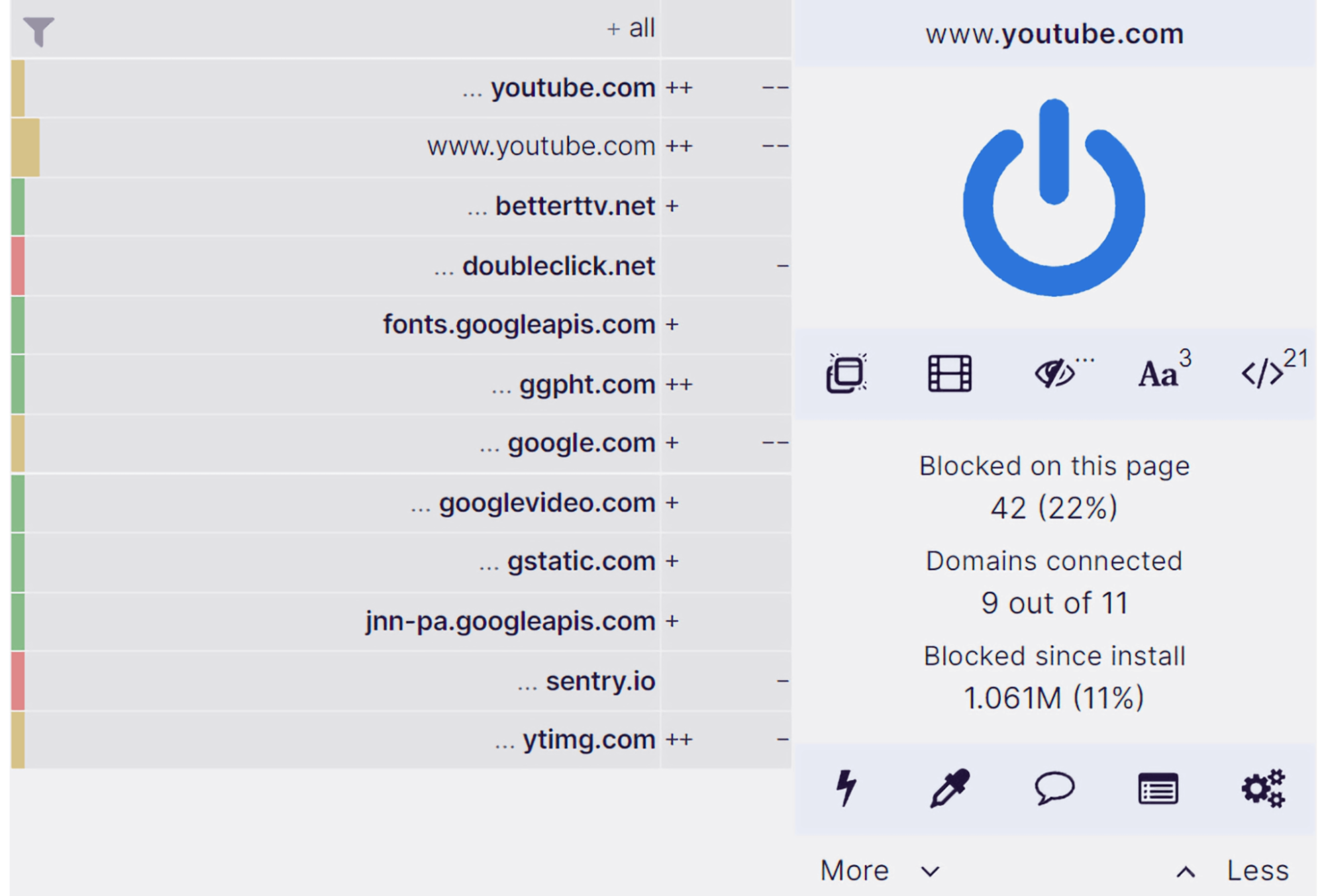
uBlock Origin Lite works as a content blocker within Chrome. It uses filtering rules to block unwanted network requests and page elements.
The extension is designed specifically for modern Chromium-based browsers and uses the newer Manifest V3 extension architecture.
This is an important distinction for a 2026 article because Chrome's move away from Manifest V2 changed how content-blocking extensions can operate.
If you're searching for the best Chrome extensions for productivity, this is one area where older recommendations can become outdated. You shouldn't automatically assume that information written about the original uBlock Origin applies identically to uBlock Origin Lite.
Key Features
uBlock Origin Lite focuses on several useful capabilities:
- Blocking unwanted advertisements
- Filtering certain tracking elements
- Reducing distracting page content
- Using filter lists to determine what should be blocked
- Providing users with control over content filtering
- Working with Chrome's current extension architecture
The goal is relatively straightforward: make webpages less cluttered so you can focus on the content you're actually trying to access.
What Most Productivity Lists Don't Tell You
Many articles categorize ad blockers as simple “distraction blockers,” but there is a more important 2026 consideration: not all content blockers work in exactly the same way anymore.
The transition to Manifest V3 has changed the technical environment for Chrome extensions, particularly content blockers.
That means users should pay attention to whether an article is recommending an extension based on outdated Manifest V2 information.
For a current productivity Chrome extension guide, this distinction matters because an extension that worked differently several years ago may not offer the same functionality today.
There's also a productivity question worth considering:
Blocking everything isn't necessarily the goal.
Some websites depend on advertising revenue, and certain pages may require particular scripts or content to function correctly. The better approach is to use content blocking to create a cleaner browsing experience while allowing trusted websites to work normally.
Real-World Workflow
Imagine you're researching a topic for a report.
You open several websites, but each page contains large advertisements, pop-ups, promotional widgets, and other visual elements.
Instead of repeatedly closing distractions or searching around them, a content blocker can reduce much of that clutter.
Your workflow becomes:
Open research page → remove unnecessary distractions → find relevant information → read and take notes → move to the next source.
This can be particularly helpful when you're working through many webpages in a single research session.
How Is uBlock Origin Lite Useful for Everyday Work?
uBlock Origin Lite is most useful when a significant part of your work involves reading, researching, or moving between multiple websites. Its productivity benefit comes from making those browsing sessions less visually cluttered and reducing the number of small interruptions competing for your attention.
Here are some practical situations where it can help:
- Research: Read articles, reports, and reference pages with fewer advertisements and distracting promotional elements.
- Content writing: Focus on competitor articles and source material without constantly navigating around banners and pop-ups.
- Studying: Reduce distractions when reading educational resources, tutorials, and online documentation.
- Market research: Review multiple company websites, landing pages, and industry publications in a cleaner browsing environment.
- News and industry reading: Focus more directly on the article or information you're trying to read rather than surrounding promotional content.
- Long reading sessions: Reduce repeated interruptions when working through several webpages over an extended period.
- Everyday browsing: Avoid repeatedly closing unwanted pop-ups and other distracting elements across different websites.
For example, imagine you're reviewing 15 websites while researching a topic. If every few pages you have to close a pop-up, ignore an autoplaying element, or navigate around large advertisements, those interruptions can gradually break your concentration.
With a content blocker, the workflow can be simpler:
Open webpage → focus on the relevant content → read or research → move to the next source.
The advantage may seem small on a single webpage, but it becomes more noticeable when browsing is a major part of your workday.
uBlock Origin Lite is particularly useful for people who think of Chrome as their main workspace. Researchers, writers, students, marketers, and other professionals may spend hours moving between webpages, which means even minor distractions can occur repeatedly throughout the day.
However, it's not necessarily useful to apply the same level of blocking to every website. Some trusted websites may need certain content or scripts to function properly, while others rely on advertising to support their work. The most practical approach is to use the extension to reduce unnecessary distractions while adjusting your settings when a website doesn't work as expected.
How Much Time and Friction Can It Remove?
The productivity benefit isn't necessarily about saving a precise number of minutes.
Instead, it reduces micro-distractions.
You don't have to repeatedly:
- Close intrusive pop-ups
- Search around large advertisements
- Dismiss unnecessary page elements
- Navigate through distracting visual content
- Recover your attention after an interruption
These individual actions may only take seconds, but repeated interruptions can make focused browsing more difficult.
For users who spend most of their day researching or reading online, that cleaner environment can be more valuable than a traditional productivity feature such as a to-do list.
uBlock Origin Lite and Productivity in 2026
The 2026 relevance of uBlock Origin Lite is strongly connected to the changing Chrome extension ecosystem.
Google's transition to Manifest V3 means that recommendations for best extensions for Chrome need to account for current compatibility rather than simply recycling older lists.
uBlock Origin Lite was designed to work within the Manifest V3 framework, making it particularly relevant for Chrome users who want content-blocking functionality under the current extension model.
This is exactly the kind of detail that can be missed in generic Chrome extensions productivity articles.
Privacy & Permissions
Privacy is one of the most important considerations when choosing browser extensions. Content blockers necessarily interact with webpage requests and content in order to determine what should be filtered. Users should therefore review the permissions displayed in the Chrome Web Store and understand what an extension is capable of accessing before installing it.
uBlock Origin Lite's privacy model and permissions should also be checked against the current Chrome Web Store listing because extension permissions and functionality can change over time.
As a general rule, don't judge an extension's privacy simply by its category. Read the permissions and privacy information before installing it.
Who Should Use uBlock Origin Lite?
It can be particularly useful for:
- Students who spend hours researching online
- Writers reading multiple reference websites
- Professionals who frequently browse the web
- Researchers working across many sources
- People who find advertising visually distracting
- Users who want a cleaner Chrome browsing experience
It may be less important for someone who rarely encounters intrusive webpages or already has a browsing environment they're comfortable with.
Verdict
uBlock Origin Lite earns a place among the best productivity Chrome extensions in 2026 because productivity isn't always about adding another tool to your workflow. Sometimes it's about removing the things that constantly interrupt it.
For Chrome users who spend significant time reading, researching, or working online, reducing unnecessary page clutter can create a cleaner and more focused browsing experience. The key is to consider its current Manifest V3-based functionality rather than relying on outdated recommendations about Chrome extensions.
5. Clockify: Best for Tracking Where Your Work Time Goes
Being busy doesn't always mean being productive. You can spend an entire day working in Chrome and still wonder where the hours actually went. Between meetings, emails, research, administrative work, and small tasks, it's easy for productive time to disappear without you noticing.
Clockify approaches productivity from a different direction. Instead of helping you create more tasks, it helps you understand how much time you're actually spending on them. Its browser extension brings time tracking into your everyday Chrome workflow, making it useful for freelancers, remote workers, agencies, and anyone who needs a clearer picture of their working hours.
What Problem Does Clockify Solve?
Clockify primarily addresses poor visibility into how your time is being spent.
For example, you may estimate that a client project takes two hours. After tracking your work, you might discover that the actual project takes closer to three hours once research, emails, revisions, and administrative tasks are included.
Without tracking, those extra activities are easy to overlook.
This makes Clockify particularly useful among Chrome extensions for productivity because it doesn't simply encourage you to work faster. It helps you identify where your working time is going in the first place.
How the Clockify Chrome Extension Works
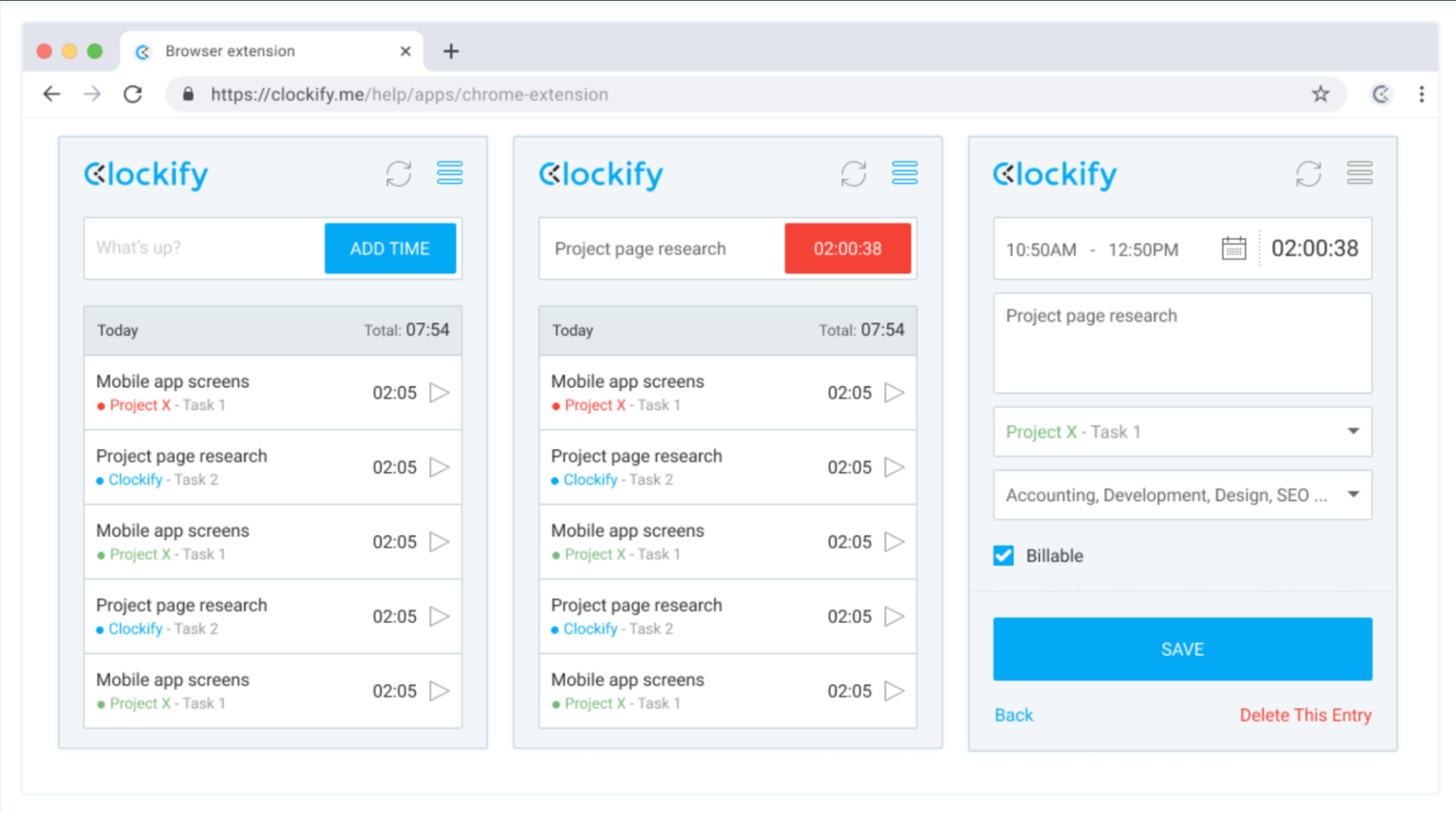
The Clockify browser extension allows you to start and stop timers while working in Chrome. Depending on the supported website or integration, you can associate tracked time with specific projects and tasks.
Instead of remembering to record everything at the end of the day, you can track time closer to the moment the work happens.
A typical workflow looks like this:
Choose project → Start timer → Work → Stop timer → Review recorded time
The extension can also work alongside supported productivity and project-management platforms, allowing time tracking to become part of an existing workflow rather than a completely separate activity.
Key Features
Useful Clockify capabilities include:
- Start and stop timers directly from the browser
- Track time against projects and tasks
- Record billable and non-billable work
- Review tracked time
- Use time data for reporting
- Track work across supported web applications
- Maintain records for client projects and internal work
These features make Clockify more than a simple stopwatch. The real value comes from turning your working hours into information you can analyze.
What Most Productivity Lists Don't Tell You
Most articles about the best productivity Chrome extensions describe time tracking as a way to “increase productivity.”
But tracking time doesn't automatically make you productive.
You can track eight hours of work perfectly and still spend most of those eight hours on low-value activities.
The real benefit comes after you collect the data.
For example, imagine you track your work for two weeks and discover that a significant portion of your time goes toward:
- Repeated administrative tasks
- Searching for information
- Client communication
- Unplanned meetings
- Switching between projects
Now you have something actionable.
You can decide which activities should be automated, delegated, scheduled differently, or removed.
In other words:
Time tracking → insight → workflow change → productivity improvement.
That's a much more useful way to think about Clockify.
Real-World Workflow
Consider a freelance designer working with four clients.
Instead of simply working throughout the day and estimating hours later, they can create separate projects for each client and track time as they move between assignments.
For example:
9:00–10:30 → Client A design work
10:30–11:00 → Client emails
11:00–12:15 → Client B revisions
1:00–2:00 → Research and planning
At the end of the week, the freelancer can see where the working hours actually went.
That information can be particularly useful when preparing invoices, estimating future projects, or identifying clients and tasks that consistently require more time than expected.
How Is Clockify Useful for Everyday Work?
Clockify is most useful when you need to know how long work actually takes, rather than relying on estimates or memory. This becomes especially valuable when your day is divided between multiple clients, projects, meetings, research sessions, and administrative tasks.
Here are some practical situations where Clockify can help:
- Freelance billing: Track the time spent on individual client projects instead of estimating hours at the end of the week.
- Project estimation: Measure how long recurring tasks take so future deadlines and project quotes are based on real data.
- Identifying time drains: Find out whether you're spending more time than expected on meetings, email, research, revisions, or administrative work.
- Remote work: Keep a clearer record of working hours when your day isn't structured around a physical office.
- Multiple client projects: Track time separately for different clients so you can see where your working hours are being allocated.
- Team and agency work: Understand how much time different projects or types of work require.
- Personal productivity analysis: Track your work for a week or two and identify activities that consistently consume more time than they should.
For example, a freelancer might assume that writing a 1,500-word article takes three hours. After tracking the complete workflow, they may discover:
Research: 1 hour → Writing: 2 hours → Revisions: 45 minutes → Client communication: 30 minutes
The actual workload is closer to 4 hours and 15 minutes, not three.
That information can change future decisions. The freelancer might increase the project estimate, reduce unnecessary revisions, create a reusable research process, or automate part of the administrative work.
Clockify can also be useful even when you're not billing by the hour. If you track your work for a short period, you can identify patterns such as spending too much time in meetings or repeatedly switching between projects.
The important point is that you don't need to track every minute forever. A two-week tracking experiment can sometimes be enough to reveal where your working time is going.
In that sense, Clockify is less about watching the clock and more about turning your working habits into data you can act on.
How Much Time and Friction Can It Remove?
Clockify doesn't necessarily save time in the same way that a text-automation extension does. In fact, starting and stopping timers introduces a small amount of extra activity.
Its value is reducing uncertainty.
Instead of guessing:
“I think I spent around five hours on this.”
You can work from recorded data.
That can improve future planning because you'll have a better understanding of how long recurring tasks actually take.
For freelancers and agencies, accurate time records can also reduce the friction involved in reconstructing work hours at the end of the week.
Clockify and Productivity in 2026
Modern browser-based work involves multiple tools, websites, meetings, AI applications, research sessions, and communication platforms. That makes understanding where time goes increasingly important.
There's also a growing difference between activity and productivity.
AI and automation can help complete tasks faster, but that doesn't necessarily mean the freed-up time is being used effectively. Time tracking can help users see whether those efficiency gains are actually translating into more meaningful work.
This makes Clockify an interesting addition to a modern productivity Chrome extension stack: it focuses on measurement rather than simply adding another task or notification system.
Privacy & Permissions
Time-tracking extensions can interact with websites and browser activity depending on the features and integrations they provide.
Before installing Clockify, users should review its current Chrome Web Store permissions and privacy information and understand what information is collected and how it is used.
This is particularly important for people working with confidential client projects or sensitive business information.
As with other Chrome extensions for productivity, convenience should be balanced with an understanding of the browser access being granted.
Who Should Use Clockify?
Clockify is particularly useful for:
- Freelancers billing clients by the hour
- Agencies tracking project time
- Remote employees
- Consultants
- Developers working across multiple projects
- Professionals trying to identify time drains
- Teams that need visibility into project hours
It may be unnecessary for someone who doesn't need to measure working hours or analyze how time is distributed across projects.
Verdict
Clockify stands out among the best productivity Chrome extensions because it approaches productivity from a measurement perspective.
Rather than simply telling you what to do next, it helps answer a more fundamental question:
“Where is my working time actually going?”
For freelancers, agencies, remote professionals, and anyone who wants to replace assumptions with real time data, Clockify can turn everyday browser activity into useful information for making better workflow decisions.
6. Momentum: Best for Staying Focused When You Open a New Tab
A new Chrome tab can easily become a gateway to distraction. You open the browser to check one thing, see a search bar, bookmarks, frequently visited websites, and other distractions, and suddenly you're doing something completely unrelated to the task you started with.
Momentum takes a different approach to productivity. Instead of filling your new-tab page with more information, it turns it into a cleaner, more intentional workspace designed to keep your attention on what matters.
For users looking for best productivity Chrome extensions, Momentum is particularly useful for people who struggle with focus rather than task organization.
What Problem Does Momentum Solve?
Momentum primarily addresses lack of focus when starting a browsing session.
Think about how often you open a new tab during work. Each time, you're presented with multiple opportunities to switch tasks. A productivity-focused new-tab page can create a small reminder of what you're supposed to be doing.
Momentum can display a focus-oriented dashboard where you can see elements such as:
- Your main focus for the day
- A personal greeting
- Inspirational or calming imagery
- Weather information
- To-do items
- Shortcuts and other productivity features
The idea is simple: make your new tab a reminder of your priorities instead of another source of distraction.
How the Momentum Chrome Extension Works
After installing the extension, Momentum replaces Chrome's standard new-tab page with its own dashboard.
Instead of immediately seeing the default Chrome experience, you're greeted by a more personalized page that can encourage you to identify your main focus.
You can use it as a lightweight starting point for your workday:
Open Chrome → see today's focus → decide what matters → begin working.
For people who frequently open new tabs throughout the day, this repeated reminder can become surprisingly useful.
Key Features
Momentum's productivity-focused features can include:
- Daily focus
- Personalized new-tab dashboard
- To-do functionality
- Inspirational backgrounds
- Weather information
- Personal greetings
- Quick links and shortcuts
- Additional productivity features depending on the plan
The extension is less about managing every aspect of your work and more about creating a calmer browser starting point.
What Most Productivity Lists Don't Tell You
Momentum isn't going to magically make you productive.
Its biggest benefit comes from environmental design.
If your normal new-tab page immediately encourages you to search, browse, check websites, or jump between activities, you're starting each browsing session with multiple possible distractions.
Momentum changes that environment.
However, there's a catch: if you turn Momentum into another dashboard that contains dozens of widgets, links, reminders, and information sources, you can recreate the same problem you're trying to solve.
The most effective setup is often the simplest one:
One major focus + a small number of useful items.
That's an important distinction when evaluating productive Chrome extensions. Productivity isn't always about adding functionality; sometimes it's about deliberately removing choices.
Real-World Workflow
Imagine a student working on an important assignment.
They open Chrome intending to spend the next hour researching the topic. Instead of immediately searching the web, the new-tab screen reminds them:
Today's focus: Finish research for economics assignment.
They can then begin the intended task rather than automatically opening social media, news websites, or unrelated searches.
The same concept works for professionals.
A marketer might set:
Today's focus: Complete campaign report.
A writer might use:
Today's focus: Finish first draft.
The reminder isn't complicated, but it can help maintain a clear intention throughout the day.
How Is Momentum Useful for Everyday Work?
Momentum is most useful when your main productivity problem isn't forgetting tasks, but getting distracted every time you open your browser. It creates a small pause between opening a new tab and immediately jumping into something unrelated.
Here are some practical situations where Momentum can help:
- Starting the workday: Set one clear priority so you know what deserves your attention first.
- Writing: Keep a goal such as “Finish the introduction” visible while researching or drafting.
- Studying: Use your main focus to remind yourself which assignment or subject you're working on.
- Remote work: Create a visible daily priority when there isn't a physical workspace providing structure.
- Freelancing: Set the most important client deliverable as your daily focus instead of jumping between projects.
- Research: Keep a specific research objective visible so browsing doesn't turn into unrelated web surfing.
- Reducing impulsive browsing: Use the new-tab screen as a reminder before opening another website simply out of habit.
- Managing a busy day: Keep the focus narrow when your task list contains more items than you can realistically complete at once.
For example, imagine you need to finish a client report but keep opening new tabs to check unrelated websites.
Instead of seeing another blank starting point, Momentum can show:
Today's focus: Finish the client report.
That doesn't physically prevent you from visiting distracting websites. What it does is introduce a visual reminder of your original intention each time you open a new tab.
This is where Momentum differs from a traditional task manager. Todoist, for example, is useful for deciding what needs to be done and when. Momentum is more useful for keeping your current priority visible while you're working.
The best results usually come from keeping the setup simple. If your Momentum page becomes filled with dozens of tasks, links, widgets, and information sources, it can become another dashboard competing for your attention.
For someone who regularly loses focus while browsing, a simple daily focus and a few carefully chosen shortcuts may be enough to make the new-tab page genuinely useful.
How Much Time and Friction Can It Remove?
Momentum doesn't save time through automation in the same way that some other Chrome extensions for productivity do.
Instead, it aims to reduce decision fatigue and distraction.
Every time you open a new tab, you're given an opportunity to remember what you're actually supposed to be working on.
That can reduce:
- Unplanned browsing
- Unnecessary searches
- Random task switching
- Time spent deciding what to work on next
The benefit is therefore more behavioral than technical.
Momentum and Productivity in 2026
With more work happening inside browsers, including AI tools, cloud applications, research platforms, communication tools, and online documents, the browser has increasingly become a workspace.
That makes the new-tab page more important than it might initially seem.
Momentum's approach is relevant because it doesn't try to compete with every new productivity application. Instead, it focuses on the first few seconds of a browsing session.
For users building a productivity-focused Chrome setup, that can complement task managers and other best extensions for Chrome without trying to replace them.
Privacy & Permissions
Because Momentum replaces your new-tab experience and can provide features such as weather and personalized content, users should review the extension's current Chrome Web Store permissions and privacy policy before installation.
As with any browser extension, it's worth understanding what information the extension can access and which features require additional permissions.
This is particularly important if you're choosing several Chrome extensions for productivity and want to keep your browser environment as private and lightweight as possible.
Who Should Use Momentum?
Momentum can be a good fit for:
- Students who struggle with online distractions
- Writers who need help maintaining focus
- Remote workers
- Freelancers
- Professionals who frequently switch between browser tasks
- People who want a cleaner Chrome new-tab experience
It may be less useful if you already have a highly disciplined browsing routine or prefer Chrome's standard new-tab page.
Verdict
Momentum earns a place among the best productivity Chrome extensions in 2026 because it takes a simple but often overlooked part of the browser, the new-tab page, and turns it into a focus-oriented workspace.
Its biggest strength isn't task management or automation. It's helping you remember what you intended to accomplish before the browser gives you a hundred other things to do.
For users whose biggest productivity challenge is distraction rather than organization, Momentum can be a simple way to make Chrome a more focused working environment.
7. Notion Web Clipper — Best for Saving and Organizing Research
When researching online, finding useful information is often easier than organizing it. You may discover an important article, save it in your bookmarks, copy a useful section into a document, or simply leave the tab open with the intention of coming back later. Eventually, those resources become difficult to find.
Notion Web Clipper addresses this gap by allowing you to save webpages directly to Notion while browsing Chrome. For users looking for best productivity Chrome extensions, it can be particularly valuable when research, information gathering, and knowledge organization are a regular part of their work.
What Problem Does Notion Web Clipper Solve?
The main problem is scattered online information. Bookmarks can tell you where a webpage is, but they don't necessarily tell you why you saved it or how it relates to a project. Notion Web Clipper allows you to save web content into a workspace where it can be organized alongside notes, databases, tasks, and other project information.
This makes it useful for:
- Researchers collecting sources
- Writers gathering article references
- Students saving study material
- Marketers researching competitors
- Professionals building knowledge libraries
Instead of keeping dozens of browser tabs open, you can save useful resources and return to them when they're actually needed.
How the Notion Web Clipper Chrome Extension Works
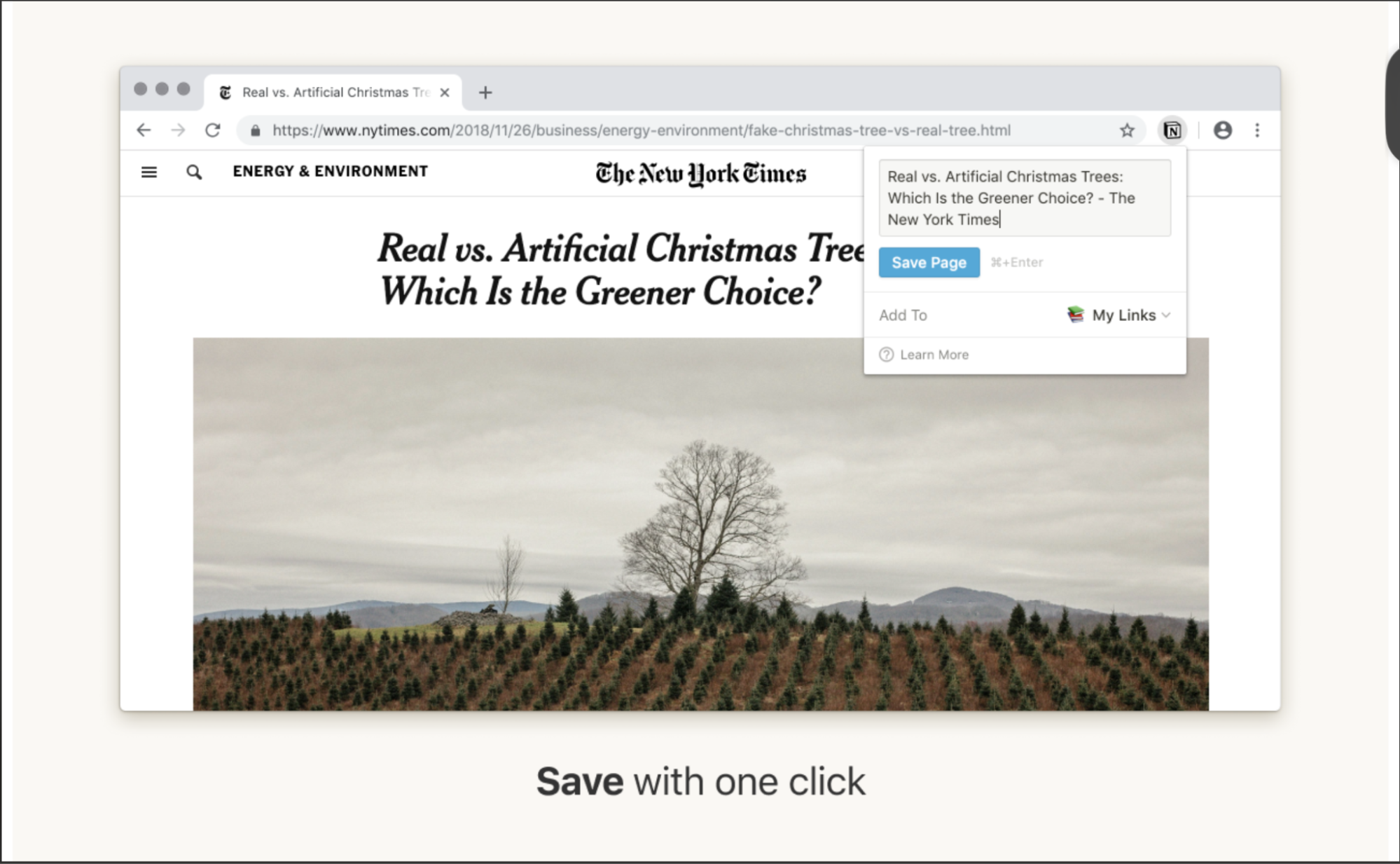
The extension lets you save a webpage from Chrome directly into Notion.
You can generally choose the Notion destination where you want the page to be stored, making it possible to build dedicated research databases or project-specific collections.
A simple workflow looks like:
Find useful webpage → Click Web Clipper → Choose destination → Save → Continue browsing
This is much more efficient than manually copying URLs into a document every time you discover something useful.
Key Features
Notion Web Clipper is particularly useful for:
- Saving webpages directly to Notion
- Choosing where saved content should be stored
- Building research collections
- Organizing saved resources alongside existing Notion pages
- Capturing information while browsing without leaving Chrome
Its strength is its connection with the broader Notion workspace.
If you already use Notion for notes, projects, or databases, the extension can become a natural part of your research workflow.
What Most Productivity Lists Don't Tell You
Many articles describe web clippers as tools for “saving articles.” That's only the first step.
The real productivity question is:
Will you actually use what you save?
It's very easy to create a huge Notion database containing hundreds of articles that you never read.
That means the most effective approach isn't:
“Save everything interesting.”
Instead:
Save information that has a clear future purpose.
For example:
“Interesting SEO article” isn't particularly useful.
But:
“SEO case study to reference while writing the client's content strategy” has a clear purpose.
This distinction is important when evaluating Chrome extensions for productivity. Capturing more information isn't necessarily productive. Making useful information easier to retrieve is.
Real-World Workflow
Imagine you're writing a long-form article and researching competitors.
You find:
- Three competitor articles
- A useful industry report
- An interesting case study
- Several statistics
- A relevant expert interview
Instead of leaving all of these pages open, you can clip the useful resources into a dedicated Notion research database.
Later, when you begin writing, you can return to that database rather than searching Google again.
The workflow becomes:
Research → Clip → Organize → Write → Reference
This creates a clear separation between information discovery and information use.
How Is Notion Web Clipper Useful for Everyday Work?
Notion Web Clipper is most useful when you regularly come across information that you'll need again later. Instead of leaving useful pages open or filling your browser bookmarks with links you may forget about, you can move relevant information into the workspace where you already manage your notes and projects.
Here are some practical situations where it can help:
- Content research: Save articles, studies, interviews, and statistics that you may reference while writing.
- SEO research: Collect competitor pages, content examples, and industry resources in one research database.
- Student research: Save sources for assignments, projects, or presentations and keep them organized by subject.
- Market research: Collect competitor websites, product pages, customer resources, and industry reports.
- Content planning: Save examples of headlines, landing pages, articles, or campaigns that could inspire future work.
- Knowledge management: Build a personal library of useful resources instead of relying entirely on browser bookmarks.
- Project research: Create a dedicated collection of webpages related to a specific client, project, or topic.
- Reading later: Save genuinely useful articles in a place where you can return to them instead of keeping them open indefinitely.
For example, imagine you're preparing an SEO article about productivity tools. During your research, you find 15 useful pages, but you don't need to read or reference all of them immediately.
Instead of leaving 15 tabs open, you can clip the relevant pages into a dedicated Notion research database.
Later, when you're writing, you can return to that collection and find the sources in the context of the project.
The workflow becomes:
Discover → Clip → Organize → Write → Reference
This is particularly useful when research happens before the actual work. You can collect information during one session and use it days or weeks later without having to repeat the same Google searches.
However, there's one important limitation: a web clipper is only as useful as the system you save information into. If you clip every interesting article you encounter, your Notion workspace can quickly become another information dump.
A better approach is to ask:
“Will I realistically need this information again?”
If the answer is no, you probably don't need to save it.
That's what makes Notion Web Clipper different from simply bookmarking everything. When used properly, it can become part of a larger research and knowledge-management workflow rather than just another place to store links.
How Much Time and Friction Can It Remove?
The extension can reduce the repetitive steps involved in saving research.
Without a web clipper, you might:
- Copy the URL.
- Open Notion.
- Find the correct page or database.
- Create a new entry.
- Paste the URL.
- Add context manually.
With the extension, much of that process can happen directly from Chrome.
The bigger benefit comes later. If your research is properly organized, you don't have to repeatedly search the web for information you've already discovered.
So the productivity gain comes from both faster capture and easier retrieval.
Notion Web Clipper and AI in 2026
AI has made information discovery significantly faster. You can now summarize documents, generate research ideas, and search through large amounts of information quickly.
That makes organization even more important.
If AI helps you discover 20 useful sources in an afternoon, simply saving all 20 isn't enough. You need a system for deciding which sources matter and where they belong.
Notion Web Clipper can support that workflow by giving your research a central destination.
A useful modern workflow is:
Discover with search/AI → verify information → clip useful source → organize → use when needed.
That makes the extension relevant to a broader Chrome extensions productivity setup in 2026.
Privacy & Permissions
Because a web clipper interacts with webpages you choose to save, users should review its current Chrome Web Store permissions and Notion's privacy information before installation.
It's also worth remembering that anything you deliberately save to your Notion workspace becomes part of that workspace's data environment.
For users dealing with confidential client information or private research, avoid clipping sensitive webpages unless you're comfortable storing that information in your Notion account.
Who Should Use Notion Web Clipper?
Notion Web Clipper is particularly useful for:
- Content writers researching articles
- Students collecting study resources
- Researchers organizing sources
- SEO professionals gathering competitor information
- Marketers tracking industry resources
- Product teams collecting market research
- Professionals building personal knowledge libraries
It's especially valuable if you already use Notion regularly.
If you don't use Notion, however, installing the clipper alone may not provide much benefit because its biggest advantage comes from the organization system behind it.
Verdict
Notion Web Clipper deserves consideration among the best productivity extensions for Chrome in 2026 because it addresses a problem that becomes increasingly important as we consume more information online: how to save useful information without losing it.
Its real value isn't simply clipping webpages. It's creating a bridge between Chrome browsing and organized knowledge. For researchers, writers, students, marketers, and anyone who regularly collects online resources, it can turn random browser discoveries into information you can actually find and use later.
Best 3 Chrome Extensions for Different Types of Users
The extensions above are useful for almost anyone who works regularly in Chrome. But productivity looks different depending on what you actually do. A marketer may need to research competitors and check tracking tags. A student may spend most of their time researching sources, managing references, and writing assignments. A developer may need to inspect websites, test layouts, and troubleshoot browser-based issues. Writers need tools that make research and editing easier, while SEO specialists often need instant access to page-level SEO data without opening another platform.
That is why there is no single list of “must-have” Chrome extensions for everyone.
Instead, the better approach is to build a small extension stack around your actual work.
In the following sections, we’ll look at the three most useful Chrome extensions for five different types of users: marketers, students, developers, writers, and SEO specialists.
The goal isn't to recommend three extensions simply because they are popular. Each pick should solve a specific problem that the person is likely to encounter during their normal workflow.
1. Chrome Extensions for Marketers
Marketing work involves constant research, competitor analysis, campaign management, content creation, and website checking. Useful extensions should therefore reduce the amount of information marketers have to collect manually.
1. Wappalyzer — Best for Competitor and Website Technology Research
Wappalyzer is a technology profiling extension that helps marketers identify the technologies being used behind a website. Instead of manually inspecting a website's source code or trying to guess which platforms are powering it, you can open the site in Chrome and see technologies such as its CMS, ecommerce platform, JavaScript frameworks, analytics tools, advertising technologies, CDN, CRM, and other services. The Chrome extension can identify more than a thousand technologies across different categories, making it particularly useful for competitor research and marketing intelligence.
How Is Wappalyzer Useful for Marketers?
One of the biggest advantages is that it turns website technology research into a quick browser task. Imagine you are analyzing a competitor's website. You may want to know whether they use Shopify, WordPress, HubSpot, Google Analytics, a particular advertising platform, or a specific ecommerce technology. Instead of researching each technology separately, Wappalyzer gives you an initial technology profile directly from the page.
This can be useful for:
- Competitor research: Identify the technology stack competitors are using.
- Lead generation: Find companies using technologies that your business sells or supports.
- Marketing research: Compare the technology choices of successful websites in a particular industry.
- Agency prospecting: Discover whether a potential client is using outdated or potentially replaceable technology.
- Sales qualification: Technology information can provide additional context before contacting a prospect.
- Ecommerce research: Identify platforms and supporting technologies used by competing stores.
- Partnership research: Discover common technology combinations across websites in a niche.
Wappalyzer also supports integrations with platforms such as Salesforce, HubSpot, Pipedrive, Zapier, and Make, which can make technology information more useful in larger marketing and sales workflows.
A Practical Marketing Example
Suppose you are an agency that provides Shopify optimization services. You find 30 ecommerce websites that look like potential prospects. Rather than manually investigating every website, you can use Wappalyzer to identify which ones are running Shopify and then prioritize those prospects.
The workflow becomes:
Find prospects → Check technology → Filter relevant companies → Research further → Contact qualified prospects
That doesn't replace proper prospect research, but it can significantly reduce the initial screening work.
What Benefits Does Wappalyzer Provide?
The biggest benefit isn't simply that Wappalyzer identifies technologies. It is that technology information can become a marketing signal.
For example:
“This company uses Shopify.”
is useful information.
But:
“This company uses Shopify, has several marketing technologies installed, and appears to be investing heavily in its online sales infrastructure.”
can become a starting point for a much more relevant sales or marketing conversation.
Wappalyzer therefore works best when the information it discovers is combined with other research rather than treated as the complete picture.
Security and Privacy
This is an important consideration because Wappalyzer needs to inspect websites to identify their technologies.
Wappalyzer says its extension analyzes elements such as HTML, scripts, cookies, network requests, and certificates to identify technology fingerprints. For basic detection, this analysis happens locally in the browser.
However, Wappalyzer also states that, when sharing is enabled, the extension may send limited website-level information to its servers, including the hostname and detected technologies. It says this does not include full page content or full visited URLs, and users can disable extension sharing in the settings.
For marketers using Wappalyzer in a company environment, this means you should still review the extension's current permissions and data-sharing settings before installing it on managed or sensitive devices.
Verdict
Best for: Competitor research, lead generation, agency prospecting, technology research, and marketing intelligence.
If your marketing work involves regularly asking “What is this website using?”, Wappalyzer can remove a surprising amount of manual investigation from the process.
2. Keywords Everywhere — Best for Keyword and Search Research
Keywords Everywhere is a browser extension designed to bring keyword and SEO data directly into the websites where marketers are already researching. Instead of repeatedly moving between Google, keyword research platforms, spreadsheets, and SEO tools, Keywords Everywhere can place relevant metrics directly into supported search experiences. It works across platforms including Google and YouTube, among others.
How Is Keywords Everywhere Useful for Marketers?
The main advantage is contextual keyword research.
You don't necessarily have to open a separate SEO platform every time you want to investigate a search term. You can search for a topic in Google and use the additional keyword information to discover related opportunities.
For marketers, this can help with:
- Finding related keyword ideas
- Exploring content topics
- Comparing search terms
- Researching competitors
- Planning blog content
- Finding keywords for landing pages
- Exploring YouTube topics
- Identifying content gaps
- Expanding an existing keyword list
- Validating whether a topic deserves further research
The extension currently offers free features such as keyword ideas, SEO and YouTube metrics, social engagement insights, and AI prompt templates. Paid functionality adds metrics such as search volume, CPC, competition, trend charts, bulk uploads, and competitor gap analysis.
A Practical Marketing Example
Suppose you are creating a content strategy around email marketing.
You could search Google for:
email marketing
Then investigate related searches and keyword ideas around topics such as:
- email marketing strategy
- email marketing automation
- email marketing for small businesses
- email campaign examples
- email marketing software
Instead of starting with a blank spreadsheet and brainstorming dozens of topics manually, the extension can help you build a larger research set directly from the search process.
You can then take the strongest opportunities into your main SEO platform for deeper analysis.
What Benefits Does Keywords Everywhere Provide?
The biggest benefit is reducing context switching.
A typical keyword research workflow might look like:
Google → SEO tool → spreadsheet → Google → SEO tool → competitor research → spreadsheet
Keywords Everywhere can bring some of that information closer to the original search activity.
This is particularly useful for marketers who perform frequent early-stage keyword discovery.
It is also useful for content teams. A writer can search a topic, discover related queries, and use those ideas to create article sections or future content briefs.
Important Limitation
Keywords Everywhere should not be treated as a complete SEO platform.
For example, it explicitly states that it is not a rank tracker. It provides keyword data and information about keywords a site currently ranks for, but it does not continuously monitor rankings over time.
That distinction matters.
Use it for research and discovery, then use a dedicated SEO platform when you need deeper competitor analysis, rank tracking, technical auditing, backlink analysis, or large-scale SEO reporting.
Security and Privacy
Keywords Everywhere's privacy policy explains how it handles information collected through its browser add-on. Its Chrome Web Store listing currently says the developer declares that data is not sold to third parties outside approved use cases and is not used for purposes unrelated to the extension's core functionality.
The company also states that your keyword data is sent to its server only to retrieve the metrics displayed by the service and says the keyword data is not saved or used for other purposes.
Because browser extensions can potentially access information from webpages, marketers should still review the permissions and privacy disclosures before installing any SEO extension. Chrome itself recommends paying attention to permissions because access to website data can allow an extension to read or modify information on those pages.
Verdict
Best for: Keyword discovery, content planning, search research, YouTube research, and quick SEO analysis.
Keywords Everywhere is particularly useful when you want SEO information while researching, rather than stopping your workflow to open another SEO platform.
Meta Pixel Helper solves a very different marketing problem.
Wappalyzer helps you understand other websites. Keywords Everywhere helps you research search opportunities. Meta Pixel Helper helps you check whether your own Meta tracking implementation is working correctly.
It is an official troubleshooting extension from Meta that detects Meta/Facebook pixels on webpages and provides real-time feedback about their implementation. It can show detected pixel events along with warnings, errors, and successful implementations.
Running Meta advertising without checking tracking is risky.
You might launch a campaign expecting Meta to record actions such as:
- Page views
- Product views
- Add-to-cart events
- Purchases
- Leads
- Registrations
- Other conversion actions
But a tracking implementation can be incorrect, incomplete, duplicated, or simply not fire when expected.
Meta Pixel Helper gives marketers and developers a quick way to inspect what is happening on the page.
A Practical Marketing Example
Imagine an ecommerce company launches a new product page.
The marketing team expects the following journey:
Ad click → Product page → Add to cart → Checkout → Purchase
Before spending heavily on the campaign, the team can visit the relevant pages and check whether the expected Meta pixel activity is being detected.
If an event isn't firing, or the implementation produces a warning, the team has an opportunity to investigate before relying on potentially inaccurate campaign reporting.
That makes the extension particularly valuable during:
- New website launches
- Landing-page launches
- Tracking migrations
- Campaign setup
- Ecommerce implementation
- Conversion tracking troubleshooting
- Website redesigns
- Analytics/tagging QA
Its biggest benefit is faster tracking verification.
Without a browser debugging tool, a marketer may need to ask a developer to investigate the page source, browser requests, or tracking implementation.
With Meta Pixel Helper, the marketer can perform an initial check directly in Chrome.
This creates a useful division of responsibility:
Marketer: “Is the expected event appearing?”
Developer: “Why isn't the event firing correctly, and how should we fix the implementation?”
The extension doesn't replace technical debugging, but it can help identify that something needs attention before the issue becomes a reporting problem.
Security and Privacy
Meta's Chrome Web Store listing says the extension's developer has disclosed that it will not collect or use your data and that the data is not sold or used for purposes unrelated to its core functionality. That makes its current disclosed data-handling position relatively straightforward compared with extensions that collect browsing information for additional services.
Still, the general Chrome extension rule applies: always review the permissions an extension requests. Chrome notes that extensions with access to website data can potentially read, request, or modify information on webpages, so permissions should make sense for the extension's function.
Verdict
Best for: Meta advertisers, performance marketers, ecommerce teams, agencies, and marketers responsible for conversion tracking.
If your business spends money on Meta advertising, checking that tracking actually fires before trusting campaign data is a simple but important part of campaign QA.
How These Three Extensions Work Together
The real value comes from the fact that these extensions solve three different marketing problems.
Extension | Main Marketing Job | Practical Use |
Wappalyzer | Website intelligence | Understand what technologies competitors and prospects use |
Keywords Everywhere | Search research | Discover keywords and content opportunities while browsing |
Meta Pixel Helper | Tracking QA | Check whether Meta Pixel events are being detected correctly |
A marketer could therefore use them at different stages of the same broader workflow:
Research the market → Analyze websites → Research search demand → Build campaigns/content → Verify tracking
That is a much more useful way to think about marketing extensions than simply asking which extension has the most features.
Security Reminder for Marketing Extensions
Marketing extensions often interact with webpages, search results, or tracking information, so security should be considered alongside productivity.
Chrome explains that extensions requesting access to website data may be capable of reading, requesting, or modifying information on those pages. It also recommends limiting permissions to what is actually necessary.
For a professional marketing browser, a good rule is:
Install fewer extensions, use reputable publishers, review permissions, keep extensions updated, and disable extensions you no longer need.
The goal isn't to avoid extensions. It's to make sure every extension has a clear marketing purpose and that the access it receives is reasonable for that purpose.
2. Chrome Extensions for Students
Students often spend hours working in Chrome, but the problem isn't always a lack of productivity. It is usually the amount of research, reading, tab management, and information collection involved in assignments and projects.
1. Zotero Connector — Best for Research and Citations
Zotero Connector is a browser extension designed for students, researchers, and academics who regularly collect information from the web. Instead of manually copying a webpage title, author, publication date, URL, and other bibliographic details into a document or spreadsheet, Zotero Connector can capture citation information from supported webpages and save it to your Zotero library.
How Is Zotero Connector Useful for Students?
The biggest advantage is that it turns “I found a useful source” into “I saved the source properly” with much less manual work.
Imagine you're researching an assignment and find a useful journal article, news report, book page, or academic webpage.
Without a reference manager, you might:
- Copy the title.
- Copy the author's name.
- Find the publication date.
- Copy the URL.
- Save the information somewhere.
- Later try to remember which source supports which point.
- Format the citation manually.
Zotero can reduce much of that repetitive work by allowing you to capture sources directly from your browser.
This is particularly useful for:
- University assignments
- Research papers
- Dissertations
- Literature reviews
- Academic projects
- Essays requiring citations
- Group research projects
- Long-term research
A Practical Student Workflow
Suppose you are writing a 3,000-word research paper.
During your research, you find 25 useful sources.
Instead of leaving 25 tabs open or copying their details into a spreadsheet, you can save the relevant sources to Zotero as you find them.
Your workflow becomes:
Search → Find useful source → Save with Zotero Connector → Organize sources → Write → Add citations
This becomes especially valuable when an assignment requires dozens of references.
What Benefits Does Zotero Connector Provide?
The biggest benefit is reducing citation-related manual work.
It also makes research more organized.
Instead of having useful sources scattered across:
- Browser bookmarks
- Google Docs
- Downloads
- Email
- Random notes
- Open browser tabs
you can build a central research library.
You can also organize sources into collections and add notes or tags, making it easier to return to the information later.
For students working on long projects, this can prevent one of the most common research problems: finding a source again but forgetting where it came from or why you saved it.
Security and Privacy
Zotero Connector needs browser access because its purpose is to recognize bibliographic information from webpages and save it to Zotero.
Students should still review the permissions shown by Chrome before installing any extension. As with any browser extension, only install it from a trusted source and keep both the extension and browser updated.
Also remember that saving a source to Zotero doesn't automatically mean every piece of information on the webpage is accurate. Students should still verify the source, author, publication details, and information before using it academically.
Verdict
Best for: University students, researchers, dissertation writers, and anyone working on citation-heavy assignments.
If you regularly think, “I know I found this source somewhere, but I can't remember where,” Zotero Connector can solve a surprisingly frustrating part of academic research.
2. OneTab — Best for Managing Research Tabs
OneTab is particularly useful for students because research can quickly turn into 20, 30, or even 50 open browser tabs.
You may start with one Google search and gradually open academic papers, articles, videos, PDFs, reference pages, university resources, and other sources.
OneTab gives you a way to convert those open tabs into a manageable list instead of keeping everything active in Chrome.
How Is OneTab Useful for Students?
OneTab is useful when you want to say:
“I need to keep these pages, but I don't need all of them open right now.”
For example, imagine you're researching a history assignment.
You have:
- 8 academic articles
- 5 news articles
- 3 university webpages
- 4 reference pages
- 2 videos
Instead of keeping 22 tabs open, you can send them to OneTab and return to them when you're ready.
A Practical Student Workflow
A useful workflow is:
Research → Open useful sources → Collect tabs in OneTab → Organize research → Work on assignment → Reopen only the sources you need
This separates research collection from active work.
That distinction is important.
You don't need every source open while you're actually writing.
What Benefits Does OneTab Provide?
The obvious benefit is a cleaner browser, but the bigger benefit is reducing research clutter.
When dozens of tabs are open, it becomes difficult to remember:
- Which source was important?
- Which article had the statistic you needed?
- Which tab was just something interesting?
- Which pages are actually relevant to the assignment?
OneTab lets you turn that temporary browser chaos into a list that you can revisit.
It can also help students working on multiple subjects.
For example:
Biology research → OneTab list
History research → OneTab list
Final-year project → OneTab list
Instead of mixing everything together in one browser window, you can keep research grouped by task.
OneTab vs Zotero Connector
These two extensions may look similar because both can help with research, but they solve different problems.
Zotero Connector = “I want to save and organize this source.”
OneTab = “I want to keep this page available without leaving it open.”
For academic research, they can work particularly well together.
You might save important sources to Zotero while keeping a temporary collection of pages in OneTab that you still need to review.
Security and Privacy
OneTab works with the webpages/tabs you choose to send to it, so students should still review its Chrome permissions and privacy information before installation.
More importantly, don't use any tab-management extension as a replacement for proper storage of important academic sources.
If a source is genuinely important to your assignment, save the citation and research information properly rather than relying only on a browser tab list.
Verdict
Best for: Students who regularly research using multiple webpages, articles, PDFs, and online resources.
If your browser regularly reaches 20+ open tabs during assignments, OneTab can make research considerably easier to manage.
3. Google Dictionary — Best for Reading and Understanding Difficult Words
Google Dictionary is designed for a much simpler problem: you encounter a word you don't understand while reading online.
Instead of opening another tab, searching Google, and then returning to the article, a dictionary extension can provide the meaning directly from the browser.
For students, this can be particularly useful when reading academic articles, textbooks, research papers, technical documentation, or unfamiliar subject material.
How Is Google Dictionary Useful for Students?
Students constantly encounter terminology they haven't seen before.
For example, while reading an economics article, you might encounter a term you don't recognize.
While reading a biology paper, you might find unfamiliar scientific terminology.
While studying law, technology, psychology, or literature, the same problem appears in different forms.
A dictionary extension reduces the interruption:
See unfamiliar word → Check meaning → Continue reading
Instead of:
See unfamiliar word → Open new tab → Search definition → Read result → Return to article → Find your place again
That difference may seem small, but repeated dozens of times during long reading sessions, it can interrupt concentration.
A Practical Student Example
Suppose you're reading a difficult research paper and encounter five unfamiliar terms in the first few paragraphs.
Rather than stopping your reading session each time, you can quickly check the definitions and continue.
This is especially useful when:
- Reading academic papers
- Studying in a second language
- Reading technical subjects
- Preparing for exams
- Researching unfamiliar topics
- Reading professional or scientific content
What Benefits Does It Provide?
The biggest benefit is reducing the friction of looking up words.
It can also help students build vocabulary naturally because they are learning words in context rather than studying an unrelated list.
For example, learning a term while reading about the actual concept can make the meaning easier to understand and remember.
However, students should distinguish between knowing the dictionary definition and understanding the concept.
A dictionary can tell you what a word means. It may not explain the underlying academic idea.
If you're reading a complicated scientific paper, you may still need a textbook, lecture, or authoritative reference to understand the concept properly.
Security and Privacy
Dictionary extensions can require access to webpage content because they need to recognize or process the word you select.
Students should therefore check the extension's current publisher, permissions, reviews, and privacy information before installation.
This is especially important on university or shared computers.
As a general rule, avoid installing several extensions that all request broad access to webpages when you only need a simple dictionary function.
Verdict
Best for: Students who read frequently online, study technical subjects, encounter unfamiliar terminology, or work in a language they are still developing.
Its value is simple: understand the word quickly and keep reading.
How These Three Extensions Work Together for Students
The three extensions cover different stages of the student research workflow:
Extension | Main Student Problem | Practical Use |
Zotero Connector | Losing track of sources | Save and organize research and citation information |
OneTab | Too many research tabs | Store pages without keeping dozens of tabs open |
Google Dictionary | Unfamiliar terminology | Understand words without leaving the webpage |
A student researching a major assignment could therefore use them like this:
Find information → Check unfamiliar terms → Save important sources → Collect temporary research tabs → Organize sources → Write the assignment
The important thing is that students don't need to install every productivity extension available.
These three are useful because they solve three different problems rather than doing essentially the same thing.
Which Students Actually Need Them?
Zotero Connector: Most valuable for university students, researchers, and citation-heavy assignments.
OneTab: Most valuable for students who regularly have many research tabs open.
Google Dictionary: Most valuable for students who frequently read unfamiliar or technical material.
If you don't have these problems, you don't necessarily need these extensions.
The best student browser setup is not the one with the most extensions installed. It's the one that removes the specific friction you encounter repeatedly while studying.
3. Chrome Extensions for Developers
Developers use Chrome for much more than browsing. It is often part of the development environment itself—used to inspect websites, debug front-end problems, test APIs, examine page structure, and understand what is happening inside a web application. That means the most useful developer extensions are the ones that reduce the need to repeatedly switch between Chrome, development tools, documentation, and external utilities.
1. JSONView — Best for Reading JSON Data
Developers frequently encounter JSON while working with APIs, backend services, configuration files, and web applications. The problem is that a raw JSON response can be difficult to read when the browser displays it as an unformatted block of text.
JSONView solves this simple but repetitive problem by formatting JSON directly in Chrome so developers can inspect the structure more easily.
How Is JSONView Useful for Developers?
Imagine you're testing an API endpoint and Chrome returns a response containing hundreds of lines of JSON.
Without formatting, you may see something like:
{"user":{"id":123,"name":"John","orders":[...]}}
When the response becomes large, manually finding nested objects or specific fields can become frustrating.
JSONView makes the structure easier to understand by presenting the JSON in a formatted, readable way.
This is useful when:
- Testing REST APIs
- Inspecting API responses
- Debugging backend/frontend communication
- Checking JSON configuration files
- Working with nested objects
- Verifying whether expected data is being returned
- Quickly inspecting an endpoint without opening another JSON formatting tool
A Practical Developer Workflow
Suppose you're building a React application that retrieves customer information from an API.
You open the API endpoint directly in Chrome and want to verify whether the backend is returning:
- Customer ID
- Name
- Email
- Account status
- Orders
- Product information
Instead of copying the entire response into an external JSON formatter, you can inspect the response directly in the browser.
The workflow becomes:
Call API → Open response → Inspect formatted JSON → Identify missing/incorrect data → Debug application
That may only save a few seconds per request, but developers can repeat this process dozens of times during a project.
What Benefits Does JSONView Provide?
Its main benefit is readability. It doesn't perform the API request or debug your backend for you. What it does is make the response much easier to inspect.
That becomes particularly helpful when working with:
- Large API responses
- Deeply nested JSON
- Multiple objects and arrays
- Development APIs
- Third-party APIs
It is a small extension with a very specific purpose—which is exactly why it can be useful in a developer's browser.
Security and Privacy
A JSON viewer generally needs to process the JSON content displayed in the browser. Developers should therefore install extensions from trusted publishers and review the permissions requested by the specific extension.
This is particularly important when working with development systems that contain sensitive information.
Never assume that because data appears in JSON it is safe to expose. API responses can contain authentication information, personal data, internal identifiers, or other sensitive fields. A browser extension should not be treated as a security boundary.
Verdict
Best for: Developers who frequently inspect API responses, JSON files, or structured web data.
If you regularly open an API endpoint and think “I wish Chrome would just format this properly,” a JSON viewer extension can remove that small but recurring annoyance.
React Developer Tools is designed specifically for developers working with React applications. It adds React-specific inspection capabilities to Chrome DevTools, allowing developers to examine the component structure of a React application rather than viewing only the final HTML rendered in the browser.
A normal webpage inspection might show you the HTML elements currently rendered on the page.
But React applications are built around components.
You may have something like:
App → Dashboard → UserProfile → UserCard → Button
React Developer Tools lets you inspect that component hierarchy and investigate how the application is structured.
Depending on the application and React version, developers can inspect information such as:
- Components
- Props
- State
- Component hierarchy
- Render-related information
- React-specific application structure
A Practical Developer Workflow
Suppose a button in a React application isn't displaying the expected information.
Instead of searching through multiple files immediately, you can inspect the component responsible for that part of the interface.
You might discover:
- The expected prop isn't being passed.
- A state value contains the wrong data.
- The wrong component is rendering.
- A component is receiving unexpected values.
The workflow becomes:
Open application → Inspect component → Check props/state → Identify problem → Return to code → Fix → Test again
That can make front-end debugging considerably more direct.
The biggest benefit is that it gives developers a React-aware view of the application.
This is particularly useful for:
- Debugging component behavior
- Understanding unfamiliar React projects
- Checking props and state
- Investigating UI problems
- Understanding component hierarchy
- Learning how an existing React application is structured
It can also be useful when joining an existing development team because you can inspect how a live application is assembled before navigating through the entire codebase.
Security and Privacy
React Developer Tools is a development tool rather than a general browsing extension. Nevertheless, developers should install it from the official Chrome Web Store or trusted React sources and keep it updated.
When debugging applications, be particularly careful with production environments.
Inspecting an application's component data can expose information that should not be copied, shared, or included in screenshots or bug reports.
Verdict
Best for: React developers, front-end developers, and teams building React applications.
If React is part of your daily development workflow, this is much more useful than a generic productivity extension because it directly connects the browser to your application's component structure.
3. Web Developer — Best for Inspecting and Testing Webpages
The Web Developer extension provides a collection of tools for developers who need to inspect and modify webpages while testing them in Chrome. Instead of repeatedly opening different browser menus or using small bookmarklets for common tasks, developers can access a range of web-development functions from the extension.
How Is Web Developer Useful for Developers?
Web Developer can help with practical testing tasks such as:
- Disabling JavaScript
- Disabling styles
- Inspecting page information
- Working with forms
- Checking images
- Testing webpage layout
- Viewing CSS information
- Inspecting links
- Resizing browser windows
- Performing accessibility-related checks
This makes it useful when you want to test how a webpage behaves under different conditions.
A Practical Developer Workflow
Suppose you're building a website and want to understand how much the page depends on JavaScript.
Instead of changing browser settings manually, you can use the extension's tools to disable JavaScript and reload the page.
You can then ask:
- Does the content still appear?
- Does navigation still work?
- Are important functions completely dependent on JavaScript?
- Does the page degrade gracefully?
The same approach can be applied to CSS, images, forms, and other page elements.
What Benefits Does Web Developer Provide?
The biggest advantage is having a collection of small testing tools in one place. Developers don't necessarily use every feature every day. Instead, the extension becomes useful when a particular testing question comes up.
For example:
“What happens if JavaScript is disabled?”
“Which images are loading?”
“How does this page behave without CSS?”
“Is this form actually submitting correctly?”
These are relatively small tasks, but having the appropriate browser tools immediately available can make testing faster.
Security and Privacy
Because a developer tool can interact with webpages, permissions should be reviewed before installation.
Developers should also be especially cautious when using browser extensions on:
- Production admin panels
- Internal company applications
- Customer dashboards
- Banking or financial systems
- Pages containing confidential information
Use developer extensions where they are needed, and avoid giving unnecessary browser access to extensions that do not require it.
Verdict
Best for: Front-end developers, web developers, QA engineers, and anyone who regularly tests webpages.
It is particularly useful when you want to perform a quick test without digging through Chrome's settings or building a separate debugging workflow.
How These Three Extensions Work Together for Developers
Unlike a generic productivity list, these three extensions target different parts of the development process.
Extension | Main Developer Problem | Practical Use |
JSONView | Difficult-to-read JSON responses | Inspect API data more easily |
React Developer Tools | Understanding React application behavior | Inspect components, props, and state |
Web Developer | Repetitive webpage testing | Test and inspect different aspects of webpages |
A typical front-end development workflow might look like:
Build application → Test webpage → Inspect React component → Check API response → Identify problem → Fix code → Test again
The important thing is that these extensions aren't intended to replace a developer's existing toolkit. They are browser-level helpers that make specific parts of development easier.
Which Developers Actually Need Them?
JSONView: Most useful for developers who frequently work with APIs and JSON responses.
React Developer Tools: Essential for developers who work regularly with React applications.
Web Developer: Most useful for developers and QA professionals who perform frequent webpage testing and inspection.
If you don't work with React, there is little reason to install React Developer Tools. Likewise, if you rarely inspect raw JSON responses, a JSON viewer may not provide much value.
The best developer browser setup should be based on the technologies and debugging tasks you actually use—not on how many developer extensions you can install.
4. Chrome Extensions for Writers
Writers spend a large part of their working day inside the browser. Researching topics, reading competing articles, collecting references, drafting content, editing copy, responding to clients, and publishing online can all happen in the same Chrome window.
The problem is that writing isn't just about putting words on a page. A large part of the work happens before and after the actual writing.
1. Notion Web Clipper — Best for Collecting Writing Research
Notion Web Clipper is useful for writers who regularly collect information from the internet before creating an article, newsletter, script, report, or other piece of content. Instead of bookmarking every useful page or leaving dozens of tabs open, you can save relevant webpages directly to Notion and organize them with the rest of your research.
How Is Notion Web Clipper Useful for Writers?
Research is often one of the most time-consuming parts of writing.
A writer may discover:
- A useful statistic
- A competitor article
- An expert quote
- A case study
- A research paper
- A useful example
- A product page
- A reference article
The problem isn't finding the information.
The problem is finding it again when you're actually writing.
Notion Web Clipper gives writers a way to capture useful webpages during research rather than relying entirely on browser bookmarks.
A Practical Writing Workflow
Imagine you're writing a 2,000-word article about remote work.
During research, you find 15 useful sources.
Instead of keeping all 15 pages open, you can save the most relevant ones into a dedicated Notion research database.
Your workflow becomes:
Research → Find useful source → Clip it → Organize research → Write → Return to source when needed
This keeps research separate from the actual writing process.
What Benefits Does Notion Web Clipper Provide?
The biggest benefit is reducing research friction. You don't have to stop your research every time you find something useful and manually copy information into your notes.
It can also make long-term content projects easier.
For example, a writer covering digital marketing might maintain separate research collections for:
- SEO
- Content marketing
- Social media
- Email marketing
- AI tools
- Competitor examples
Over time, this can become a reusable knowledge base rather than a collection of forgotten bookmarks.
Security and Privacy
Because the clipper interacts with webpages, writers should review the extension's permissions and privacy practices before installation.
It's also important to remember that saving an article doesn't automatically make the information reliable.
If you are writing factual or research-based content, verify important claims against the original source before publishing.
Verdict
Best for: Bloggers, content writers, researchers, journalists, newsletter writers, and anyone who regularly collects online research.
Its biggest value is turning scattered web research into something you can actually find and use later.
LanguageTool is a writing and proofreading extension that checks text for common problems such as spelling, grammar, punctuation, and style. It works directly in supported text fields and websites, allowing writers to identify mistakes while they are writing rather than waiting until the entire document is finished.
Writers don't make mistakes only in long articles.
They also write:
- Client emails
- Headlines
- Social posts
- Outreach messages
- Product descriptions
- Website copy
- Proposals
- Newsletters
- Comments
- Briefs
Because much of this writing happens inside the browser, having editing assistance available while typing can be convenient.
A Practical Writing Workflow
Suppose you're writing an outreach email to a potential client.
You finish the message and notice several small issues:
- A spelling mistake
- Missing punctuation
- An awkward sentence
- An inconsistent capitalization choice
Instead of copying the email into a separate proofreading tool, you can review the suggestions directly where you're writing.
The workflow becomes:
Write → Review suggestions → Fix genuine issues → Read manually → Send
That last step matters.
An automated writing assistant should support editing, not replace the writer's judgment.
The main benefit is catching small errors before publication or sending. For professional writers, these small errors matter because readers often judge the quality of the entire piece based on details.
LanguageTool can be particularly useful for writers who:
- Produce large amounts of content
- Write professionally in English or another supported language
- Frequently write emails and online communication
- Work quickly and make occasional typing errors
- Want an additional proofreading layer
It can also be useful for multilingual writers who want additional assistance when writing in a language that isn't their first language.
If Grammarly is already included in the general productivity section, LanguageTool gives this writer-specific section a different option rather than repeating the same recommendation.
The important point isn't that one tool is universally better.
The choice depends on the writer's preferred interface, language requirements, features, and workflow.
Security and Privacy
Writing assistants deserve particular privacy consideration because they may interact with text you type into webpages.
Before installing one, writers should check:
- What data the extension can access
- What webpage permissions it requests
- How submitted text is processed
- Whether information is stored
- Whether the service uses text for additional purposes
- Whether the extension is appropriate for confidential work
This matters especially when writing confidential client material, internal business documents, unpublished manuscripts, or sensitive communications.
Verdict
Best for: Bloggers, copywriters, students, freelancers, journalists, and professionals who write frequently in Chrome.
LanguageTool is most useful as a second pair of eyes, not as the writer.
3. Text Blaze — Best for Repetitive Writing
Text Blaze is designed for a problem many writers don't recognize until they track how much time they spend typing the same things repeatedly.
Writers often reuse the same:
- Email introductions
- Client responses
- Content briefs
- Instructions
- Calls to action
- Outreach messages
- Sign-offs
- Formatting templates
- Frequently requested information
Typing these manually every time is unnecessary. Text Blaze allows users to create shortcuts that expand into longer pieces of text.
How Is Text Blaze Useful for Writers?
Suppose you regularly send a client the same article-submission instructions.
Instead of typing the entire message every time, you could create a shortcut.
You type the shortcut, and the saved text is inserted automatically.
For example:
Shortcut → Full client instructions
This turns repetitive typing into a single action.
A Practical Writing Workflow
Imagine a freelance writer sends 20 client emails every week.
Several emails contain almost identical sections:
- Introduction
- Project status
- Revision instructions
- Delivery information
- Payment information
- Closing message
Rather than repeatedly recreating those sections, the writer can save commonly used text and insert it when required.
The workflow becomes:
Receive request → Start response → Insert reusable section → Personalize → Review → Send
The important part is personalize.
Templates should speed up communication without making every message sound robotic.
What Benefits Does Text Blaze Provide?
The main benefit is reducing repetitive typing.
This becomes particularly valuable for writers who combine writing with client management.
For example, a content writer might use shortcuts for:
Client communication
- Project update
- Revision response
- Delivery message
Content workflow
- Article brief template
- Research checklist
- Content structure
Outreach
- Initial pitch
- Follow-up
- Guest-post introduction
Instead of thinking, “What was that message I sent last time?”, the writer can insert the appropriate template and adapt it.
Text Blaze Can Also Improve Consistency
Speed isn't the only advantage.
Reusable templates can help maintain consistency.
If you have a standard client onboarding message, using a saved template reduces the chance of accidentally forgetting an important instruction.
The same applies to:
- Editorial checklists
- Submission requirements
- Standard disclaimers
- Project instructions
- Formatting requirements
Security and Privacy
Text automation tools can potentially interact with text fields across websites, so writers should review the extension's permissions carefully.
Avoid putting highly sensitive information into reusable snippets unless you understand how the service stores and processes that information.
Never create shortcuts containing passwords, authentication codes, payment information, or other secrets.
Verdict
Best for: Freelance writers, copywriters, content teams, outreach specialists, editors, and anyone who repeatedly writes similar messages.
If you find yourself typing the same paragraph several times a week, that paragraph is a good candidate for automation.
How These Three Extensions Work Together for Writers
These three tools address three different stages of a writer's workflow:
Extension | Main Writing Problem | Practical Use |
Notion Web Clipper | Losing useful research | Save and organize online sources |
LanguageTool | Small writing and grammar errors | Proofread while writing online |
Text Blaze | Repetitive typing | Insert frequently used text with shortcuts |
A practical writing workflow could look like:
Research → Save useful sources → Organize ideas → Draft → Proofread → Reuse templates where appropriate → Publish
This is more useful than simply installing several grammar or AI-writing extensions that perform overlapping jobs.
Which Writers Actually Need Them?
Notion Web Clipper: Best for writers who research extensively before writing.
LanguageTool: Best for writers who want additional proofreading support while working online.
Text Blaze: Best for writers who repeatedly send similar emails, messages, instructions, or content structures.
You don't need all three.
If your biggest problem is research organization, start with Notion Web Clipper. If errors are your main concern, use a proofreading tool. If you repeatedly type the same messages, Text Blaze will probably provide the most immediate benefit.
The best writing extension is ultimately the one that removes a specific bottleneck from your writing process, rather than simply adding another tool to your browser.
5. Chrome Extensions for SEO Specialists
SEO specialists spend a large part of their working day inside Google and individual webpages. They check titles, headings, canonical tags, robots directives, links, redirects, keyword opportunities, search results, competitor pages, and technical elements.
The right Chrome extensions can make these checks considerably faster because they put useful SEO information directly in the browser instead of requiring you to open a separate SEO platform for every small investigation.
1. Detailed SEO Extension — Best for Quick On-Page SEO Checks
Detailed SEO Extension is designed for one of the most common SEO tasks: looking at a webpage and quickly understanding its important SEO elements.
Instead of opening the source code or navigating through several tools, an SEO specialist can use the extension to inspect information such as titles, meta descriptions, headings, canonical URLs, robots directives, links, and other page-level details. It is particularly useful when you're doing quick checks across many pages.
How Is Detailed SEO Extension Useful for SEO Specialists?
Imagine you're auditing a competitor's article.
You want to know:
- What is the page title?
- What meta description are they using?
- What is the H1?
- How are their H2s structured?
- Is there a canonical URL?
- Is the page indexable?
- How many words does it contain?
- What links are present?
- What structured data is being used?
You could investigate these elements manually through the page source and browser tools.
A dedicated SEO extension brings many of those checks into one place.
That makes it useful for:
- On-page SEO audits
- Competitor analysis
- Content audits
- Technical SEO checks
- SEO content research
- Website migrations
- Checking newly published pages
- Reviewing client websites
- Finding optimization opportunities
A Practical SEO Workflow
Suppose you are reviewing the top 10 Google results for a target keyword.
For each competing page, you can quickly inspect:
Title → Meta description → H1 → Headings → Canonical → Indexability → Content structure
You can then record the useful findings in your SEO research sheet.
For example, you might notice that most ranking pages cover five major subtopics while your client's page covers only three.
That doesn't automatically mean you should copy the competitors.
But it gives you a starting point for investigating content coverage and search intent.
What Benefits Does Detailed SEO Extension Provide?
Its biggest benefit is speed.
SEO specialists often don't need a complete website audit every time they open a page.
Sometimes they simply need one answer:
“What is the canonical URL?”
or:
“What is the H1?”
or:
“Is this page using a noindex directive?”
Opening a full SEO platform for every small question can be unnecessary.
A browser extension makes these quick checks much easier.
Security and Privacy
Because an SEO extension needs to inspect webpage information, SEO professionals should pay attention to its browser permissions.
This is especially important when using extensions on:
- Client websites
- Internal company systems
- Staging environments
- Private dashboards
- Pages containing confidential information
Only install extensions from trusted sources and review the publisher and permissions before installation.
Also remember that inspecting a webpage does not make the information automatically trustworthy. SEO data should still be interpreted in context.
Verdict
Best for: SEO specialists, content SEOs, agencies, and marketers who frequently need quick page-level SEO information.
Its biggest strength is simple: you can answer many basic SEO questions without leaving the webpage you're analyzing.
2. Keyword Surfer — Best for Keyword Research While Searching
Keyword Surfer is designed to bring keyword-related information directly into Google search.
Instead of treating Google as just a place to find search results, the extension adds keyword research information to the search experience.
Its current functionality includes keyword suggestions, search-volume information, content ideas, and the ability to export keyword research data.
How Is Keyword Surfer Useful for SEO Specialists?
The biggest advantage is keyword research without constantly switching between tools.
Suppose you're researching the keyword:
best project management software
A normal Google search shows you the results.
With Keyword Surfer, you can also explore related keyword ideas and search-volume information as part of the same research process.
This can help you discover:
- Related keywords
- Supporting topics
- Content ideas
- Variations of the primary keyword
- Potential long-tail opportunities
A Practical SEO Workflow
Imagine you're creating a content brief for:
Best CRM software for small businesses
You might start with that main query and then investigate related searches.
You could discover related topics such as:
- CRM software for startups
- Small business CRM
- Free CRM software
- CRM features
- CRM comparison
- CRM for sales teams
You can then use those ideas to build a broader content outline.
The workflow becomes:
Search keyword → Review related ideas → Identify useful terms → Build keyword list → Create content brief → Validate with deeper SEO research
This is especially useful during the discovery stage of keyword research.
What Benefits Does Keyword Surfer Provide?
The biggest benefit is reducing context switching.
An SEO specialist may otherwise move repeatedly between:
Google → Keyword tool → Spreadsheet → Google → Keyword tool → Competitor pages
Keyword Surfer brings some keyword information closer to the search itself.
It can also help content writers and SEO teams brainstorm topics quickly.
For example, if you're researching a broad topic and don't yet know what users search for, related keyword suggestions can give you ideas that you may not have considered.
Important Limitation
Keyword data should not be treated as an exact prediction of how much traffic a page will receive.
Search volume is useful for estimating demand, but ranking position, search intent, competition, SERP features, location, seasonality, and click behavior all influence actual traffic.
So the sensible workflow is:
Use Keyword Surfer for discovery → Validate important keywords with your primary SEO platform → Analyze the SERP → Decide what to target
Don't build an entire SEO strategy from a single metric.
Security and Privacy
Keyword research extensions interact with search pages, so SEO professionals should review their current Chrome permissions and privacy disclosures before installing them.
This is especially relevant on company-managed browsers or computers where extensions may have access to browsing-related information.
As with any browser extension, use the official publisher/source, keep it updated, and remove it if you no longer need it.
Verdict
Best for: Keyword research, content planning, SEO brainstorming, bloggers, content marketers, and SEO specialists.
Keyword Surfer is particularly useful when you want quick keyword information while you're already searching, rather than opening a separate keyword research platform for every query.
Ahrefs SEO Toolbar is the most comprehensive of these three options. It combines several SEO functions directly in Chrome, including on-page SEO reports, redirect tracing, outgoing-link analysis, SERP information, keyword ideas, and, when connected to an eligible Ahrefs account, additional SEO metrics.
The extension is useful when you're actively analyzing search results and webpages and need SEO information immediately.
For example, when looking at a competitor's article, you can inspect:
- Title
- Meta description
- Word count
- Heading structure
- Canonical URL
- Robots directives
- Hreflang
- Structured data
- Open Graph information
- Image alt text
- Outgoing links
- Redirects
- HTTP headers
Ahrefs says these on-page reports are available through the toolbar, while additional SEO metrics are available when using a connected paid account.
A Practical SEO Workflow
Suppose you're performing a competitor analysis for a commercial keyword.
You search Google and start reviewing the ranking pages.
Instead of opening each page and then manually checking multiple SEO elements, the toolbar can provide information while you move through the SERP.
You can investigate:
Ranking page → SEO structure → Links → Redirects → SEO metrics → Competitive comparison
This is useful when trying to understand why certain pages may be competitive.
For example, you might compare:
- Content structure
- Heading coverage
- Referring domains
- Organic keywords
- Estimated traffic
- Domain Rating
- Page-level metrics
The point isn't to copy the highest-ranking page.
The point is to understand the competitive environment before deciding what your own page needs.
Link Analysis Is Another Major Use
The toolbar can identify different outgoing link types and can check for broken or redirected links. Ahrefs also allows links to be filtered and highlighted, with export functionality available for link data.
This can be useful for:
- Internal-link reviews
- Competitor link research
- Broken-link checks
- Link opportunity research
- Reviewing sponsored/nofollow/UGC links
- Investigating outbound-link patterns
For example, if you're reviewing a resource page for a potential link-building opportunity, being able to quickly see its outgoing links can provide useful context.
Redirect and Technical SEO Checks
Redirect problems are another area where the toolbar can save time.
The extension can trace redirect chains and expose HTTP headers, including SEO-related information such as canonical and crawler directives.
That is useful when investigating questions such as:
“Why does this URL end up somewhere else?”
or:
“Is this page actually sending a noindex instruction?”
Instead of relying only on the visible webpage, you can inspect what the browser receives during the request.
SERP and Keyword Research
Ahrefs SEO Toolbar can also enhance Google search results with keyword and page-level SEO information.
For users with the relevant Ahrefs account access, the toolbar can show metrics such as:
- Keyword Difficulty
- Search volume
- Traffic Potential
- Cost per click
- Domain Rating
- URL Rating
- Referring domains
- Organic keywords
- Search traffic
This can make competitor research much faster because the SEO metrics appear alongside the search results rather than requiring you to manually copy URLs into another tool.
The biggest benefit is consolidation.
Instead of installing separate extensions for:
- On-page SEO
- Link checking
- Redirect checking
- SERP analysis
- Keyword ideas
Ahrefs combines many of these functions into one toolbar.
This can be particularly useful for SEO professionals who spend a large portion of their day researching competitors and websites.
Free vs Paid
This distinction is important.
Ahrefs provides several useful toolbar features for free, including the on-page SEO report, redirect tracer, outgoing-link tools, link highlighting, and other browser-based SEO functions.
Additional SEO metrics and keyword data are available through paid Ahrefs access.
So you don't necessarily need an Ahrefs subscription just to use the toolbar for basic page inspection.
However, if you're already paying for Ahrefs, the extension becomes considerably more useful because it brings the platform's metrics directly into your browser.
Security and Privacy
Because the toolbar operates across webpages and can inspect page-level information, SEO professionals should review the extension's current permissions and privacy information before installing it.
If you're connecting an Ahrefs account, you should also understand what account access you are authorizing.
The safest approach for professional use is to:
- Install the official extension.
- Keep it updated.
- Review browser permissions.
- Use separate browser profiles for sensitive work when appropriate.
- Avoid installing duplicate or unknown SEO extensions simply because they offer similar metrics.
Verdict
Best for: Professional SEOs, SEO agencies, content teams, link builders, technical SEOs, and Ahrefs users.
If you regularly inspect competitors, analyze SERPs, check links, investigate redirects, and review on-page SEO, Ahrefs SEO Toolbar can consolidate a significant amount of browser-based SEO work.
How These Three Extensions Work Together for SEO
The three extensions aren't identical, which is why they can work well as a small SEO toolkit.
Extension | Main SEO Problem | Practical Use |
Detailed SEO Extension | Quickly understanding a webpage | Inspect titles, headings, canonicals, robots directives, and other on-page elements |
Keyword Surfer | Finding keyword opportunities | Discover related keywords and search information while using Google |
Ahrefs SEO Toolbar | Deeper competitor and SERP analysis | Analyze pages, links, redirects, SERPs, and SEO metrics |
A practical SEO workflow could look like:
Find keyword → Analyze SERP → Research competitors → Inspect page structure → Check links and technical elements → Compare SEO metrics → Build strategy
This is where browser extensions become genuinely useful for SEO professionals.
They aren't replacing your main SEO platform.
They are reducing the number of small investigations that require you to leave the page and open another tool.
Which SEO Specialists Actually Need Them?
Detailed SEO Extension: Best if you frequently perform quick on-page checks across individual URLs.
Keyword Surfer: Best if keyword discovery and content research are a regular part of your work.
Ahrefs SEO Toolbar: Best for professionals who perform frequent competitor, SERP, link, and technical SEO research—especially existing Ahrefs users.
You don't necessarily need all three.
If your primary job is technical SEO, the first and third options may be more useful. If you're primarily a content SEO, Keyword Surfer may provide more immediate value.
The important thing is to build your SEO browser around the tasks you perform repeatedly, not simply install every SEO extension you come across.
Conclusion
The right Chrome extensions for productivity can make everyday work faster, more organized, and less distracting. But installing dozens of tools isn't the goal. The real benefit comes from choosing extensions that solve specific problems in your workflow.
From turning browser activity into actionable tasks with Todoist to reducing tab clutter with OneTab, improving writing with Grammarly, minimizing distractions with uBlock Origin Lite, tracking working hours with Clockify, staying focused with Momentum, and organizing online research through Notion Web Clipper, each tool approaches productivity from a different angle.
The best productivity Chrome extensions are ultimately the ones that remove friction rather than create more work. Before installing an extension, consider what is slowing you down most, task management, distractions, time tracking, writing, research, or information overload, and choose accordingly.
You don't need all ten. Start with the one that addresses your biggest productivity problem, use it consistently, and then decide whether another productivity Chrome extension would genuinely improve your workflow. In 2026, Chrome is increasingly becoming a complete workspace, and the right best Chrome extensions can help you make that workspace more focused, efficient, and easier to manage.